
Running a transaction using a stored payment method
This guide shows you how to process a payment using a customer’s stored card in the Virtual Terminal. Stored payment methods allow you to run secure transactions without re-entering card details.
1. Navigate to the Virtual Terminal
Go to Virtual Terminal from the main navigation menu.

2. Open the “Select a Customer” Window
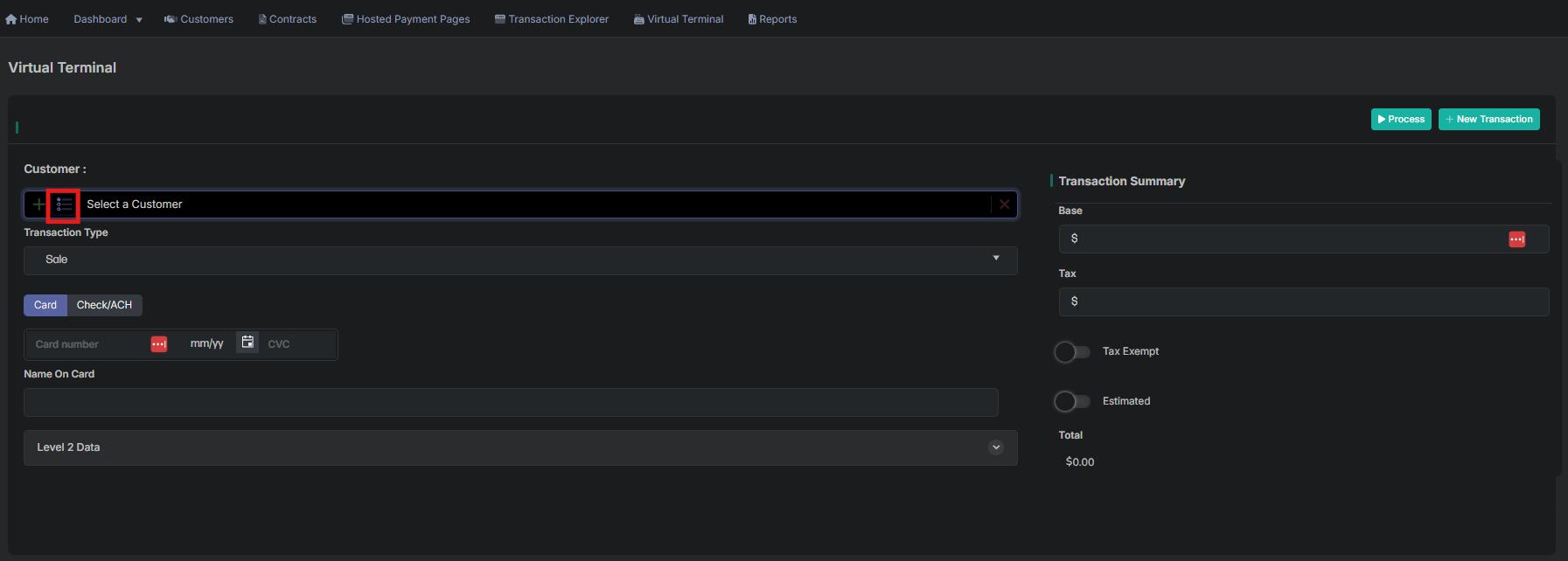
Click the customer list button (purple icon).
This opens the Select a Customer window, where you can search for and select an existing customer.
Note:
The green + button opens the New Customer form if you need to add a new customer before running a stored-payment transaction.
3. Select a Customer
From the Select a Customer window, choose the customer you want to run the transaction for.
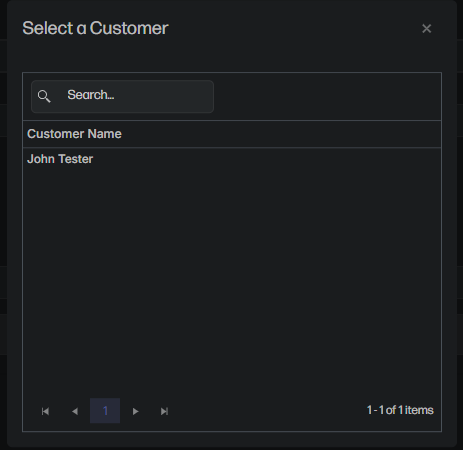
Behavior after selecting a customer:
-
If the customer has only one stored card:
The system automatically loads that card into the Card section. -
If the customer has multiple stored cards:
- The Select a payment method window appears.
- Choose a card from the dropdown list.
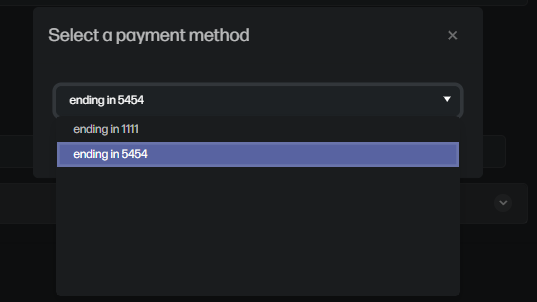
- Click Use Selected to load that card into the payment form.
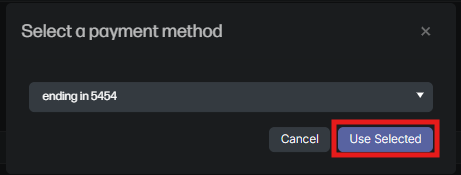
4. Review the Stored Payment Method
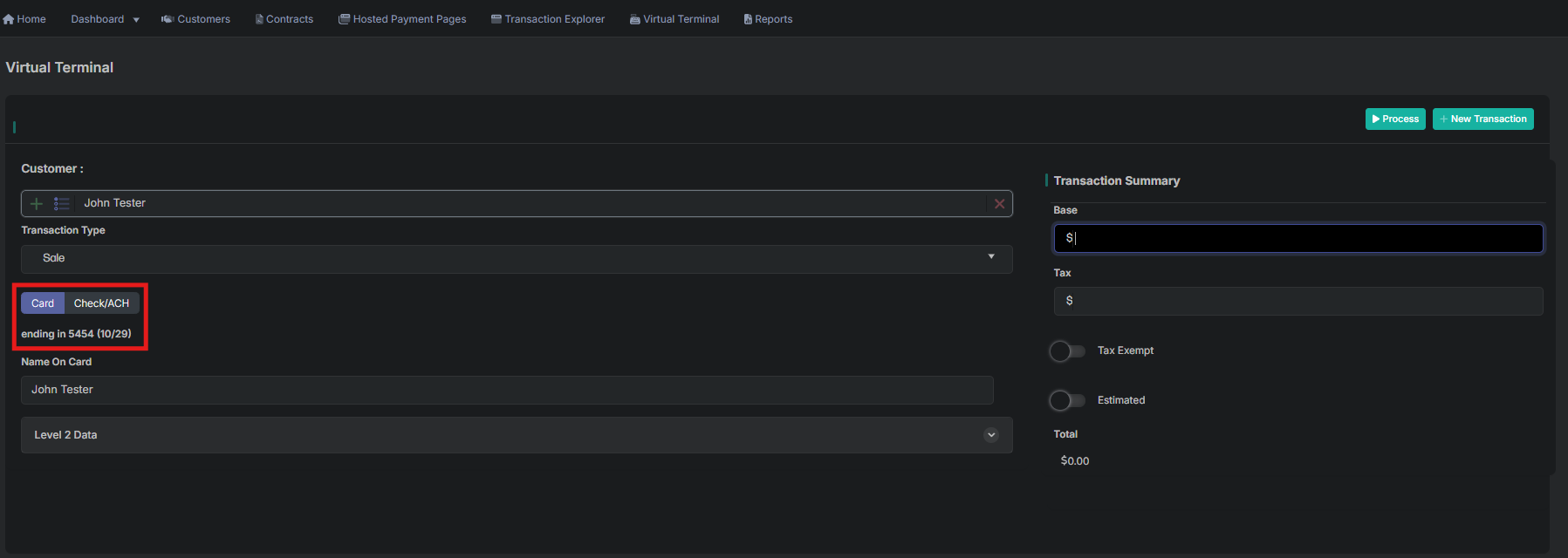
After selecting the customer, their stored payment method will be populated in the Card section—either automatically (if only one card is saved) or after selecting it from the payment method list.
Review the card details shown (last 4 digits and expiration date) to confirm the correct card is selected before proceeding.
5. Choose the Transaction Type
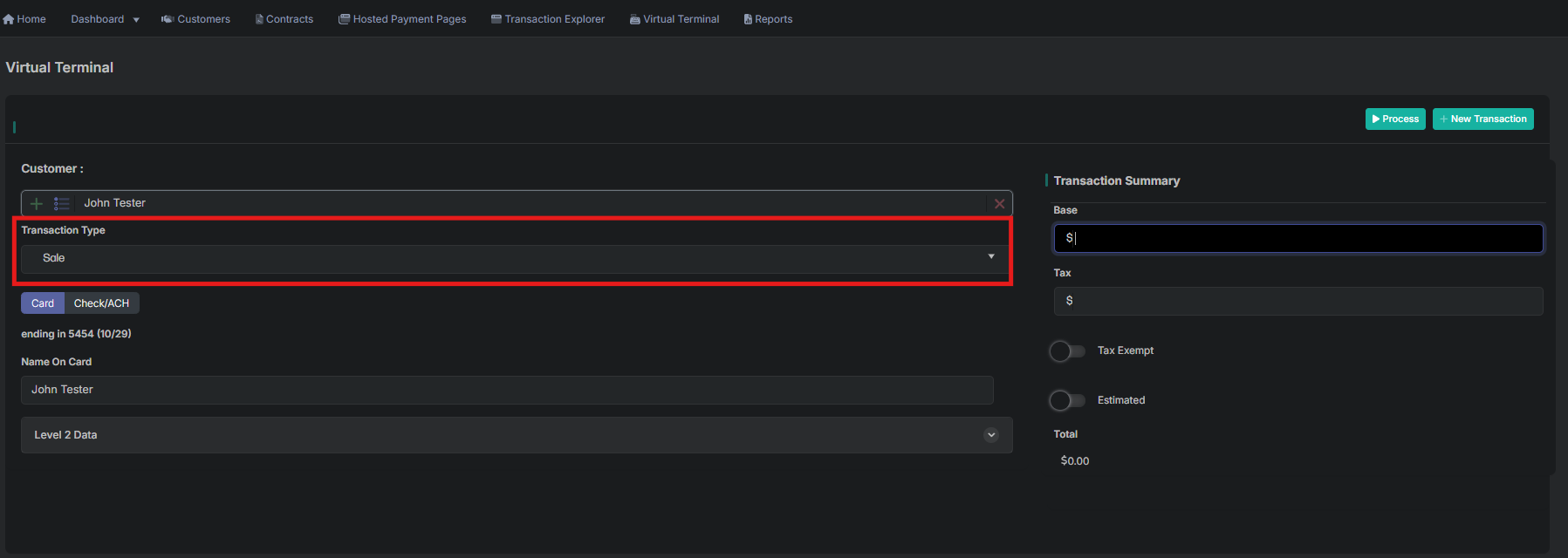
From the Transaction Type dropdown, select:
- Sale (default)
6. Enter the Amount
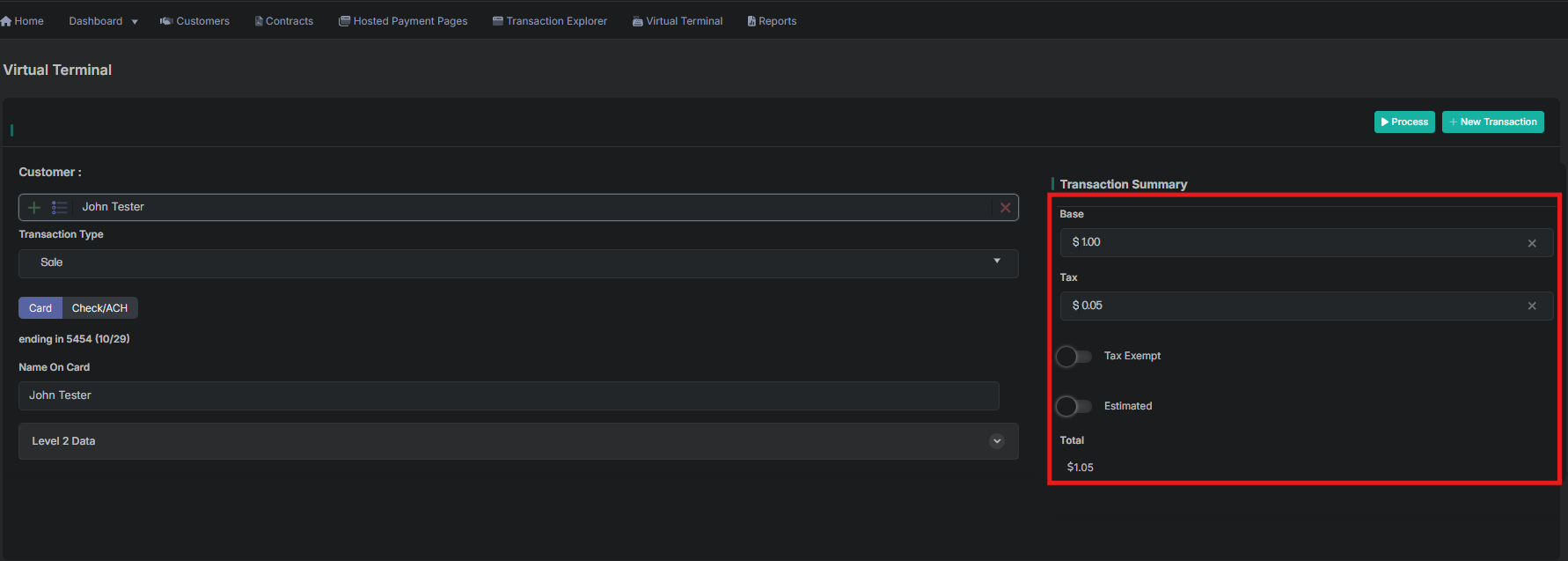
In the Transaction Summary panel:
- Enter the Base amount
- Enter Tax, if applicable
- Toggle Tax Exempt or Estimated as needed
The Total updates automatically as you enter amounts.
7. Click Process
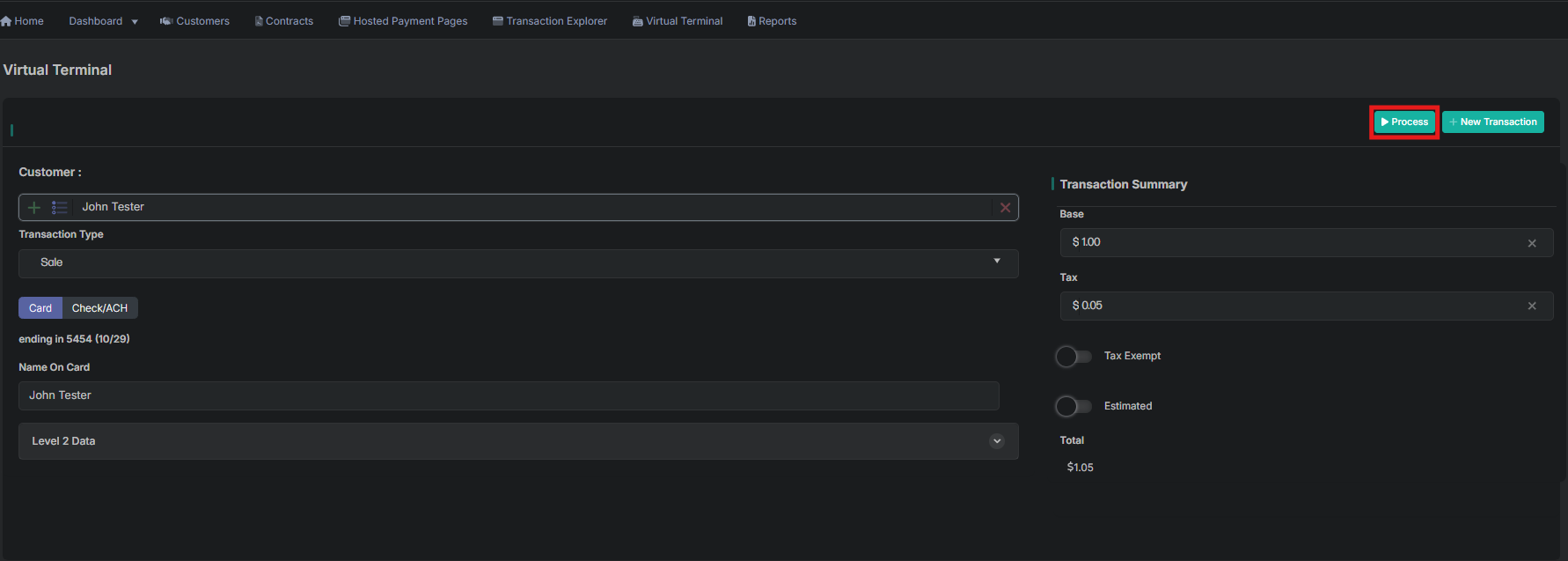
Click the Process button at the top right to submit the transaction.
The system securely authorizes and processes the payment in real time.
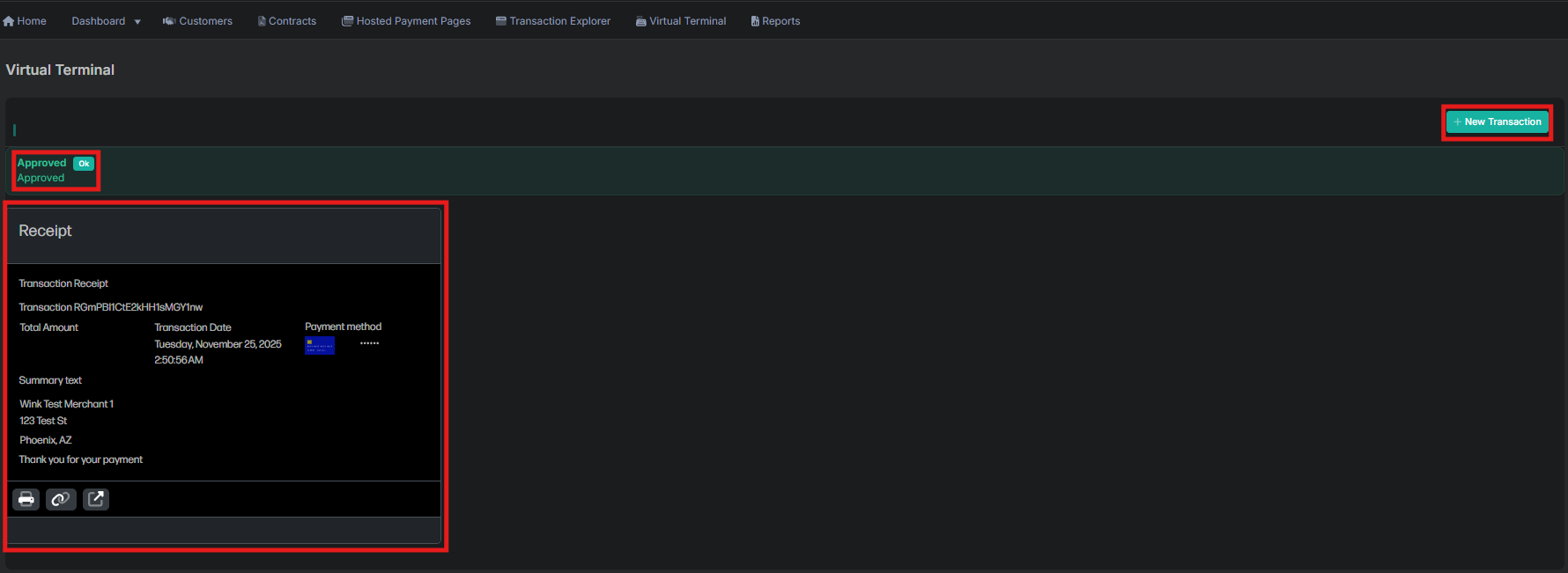
8. Viewing the Receipt
The receipt includes:
- Approval status
- Transaction ID
- Total amount
- Date and time
- Stored payment method used (masked card number)
- Customer or business information
Buttons to:
- Print the receipt
- Copy the receipt link
- View transaction details
Click New Transaction to return to the Virtual Terminal and run another payment.
Updated 11 months ago