
Processing a one-time ACH payment
This guide walks you through how to process a one-time Check/ACH payment using the Virtual Terminal.
1. Navigate to the Virtual Terminal
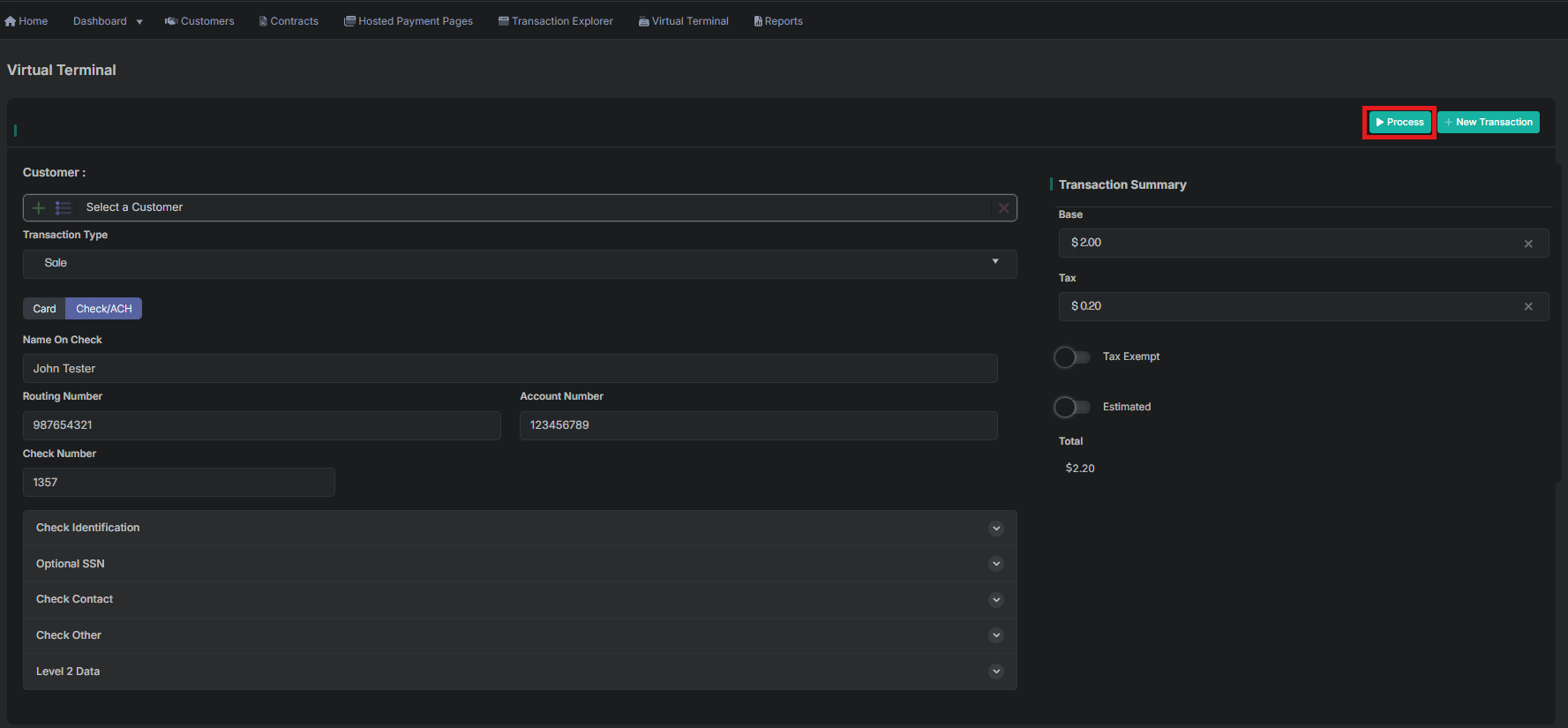
Go to Virtual Terminal from the main navigation menu.

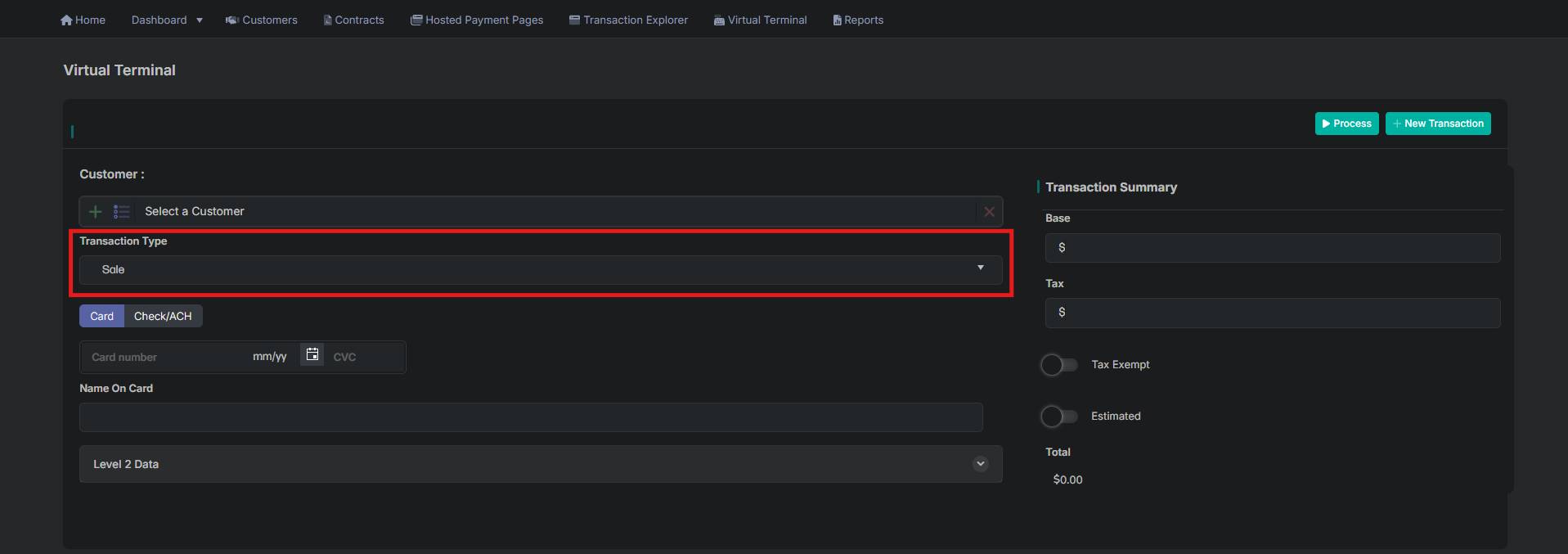
2. Choose the Transaction Type
From the Transaction Type dropdown, select:
- Sale (default)
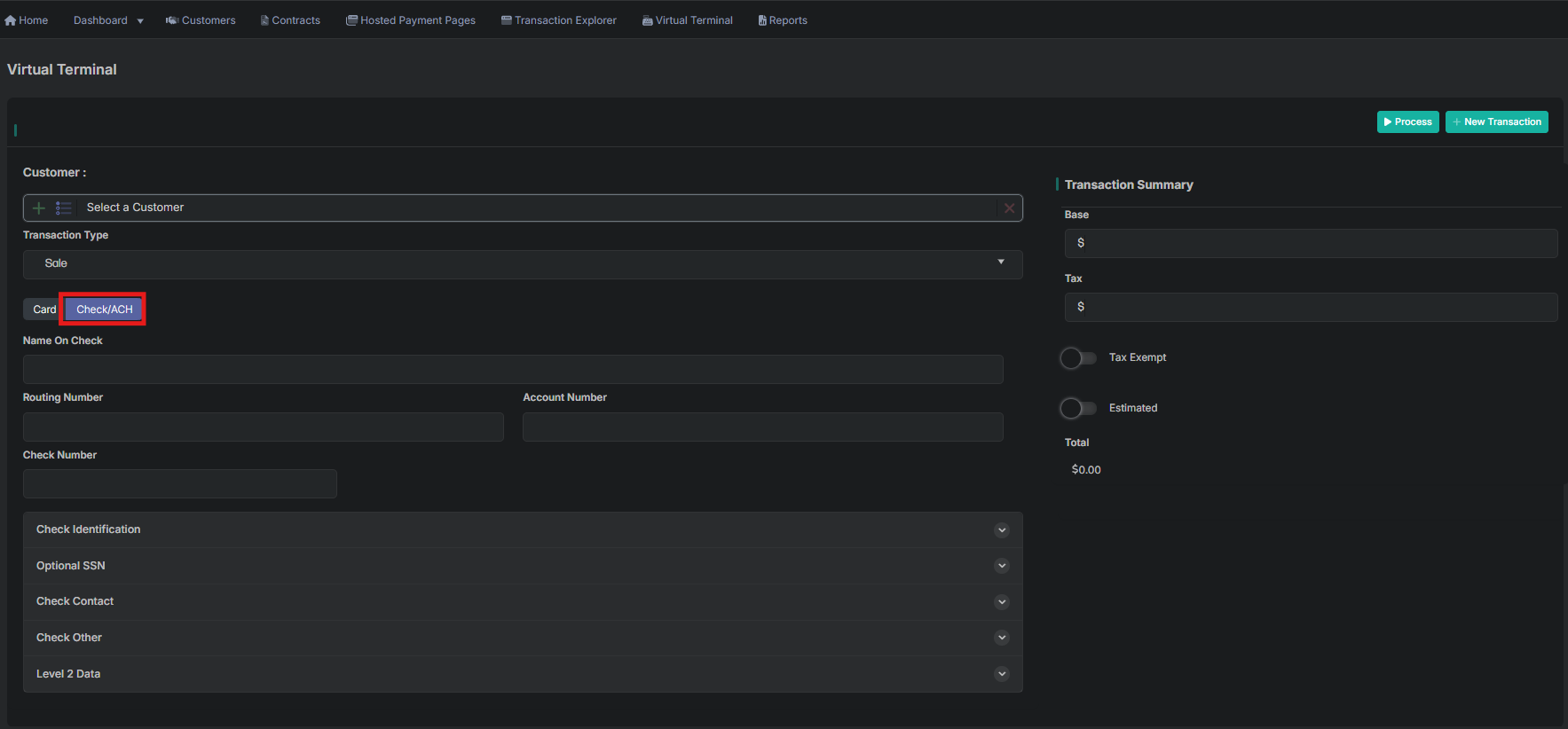
3. Select Check/ACH as the Payment Method
Ensure the Check/ACH tab is selected.
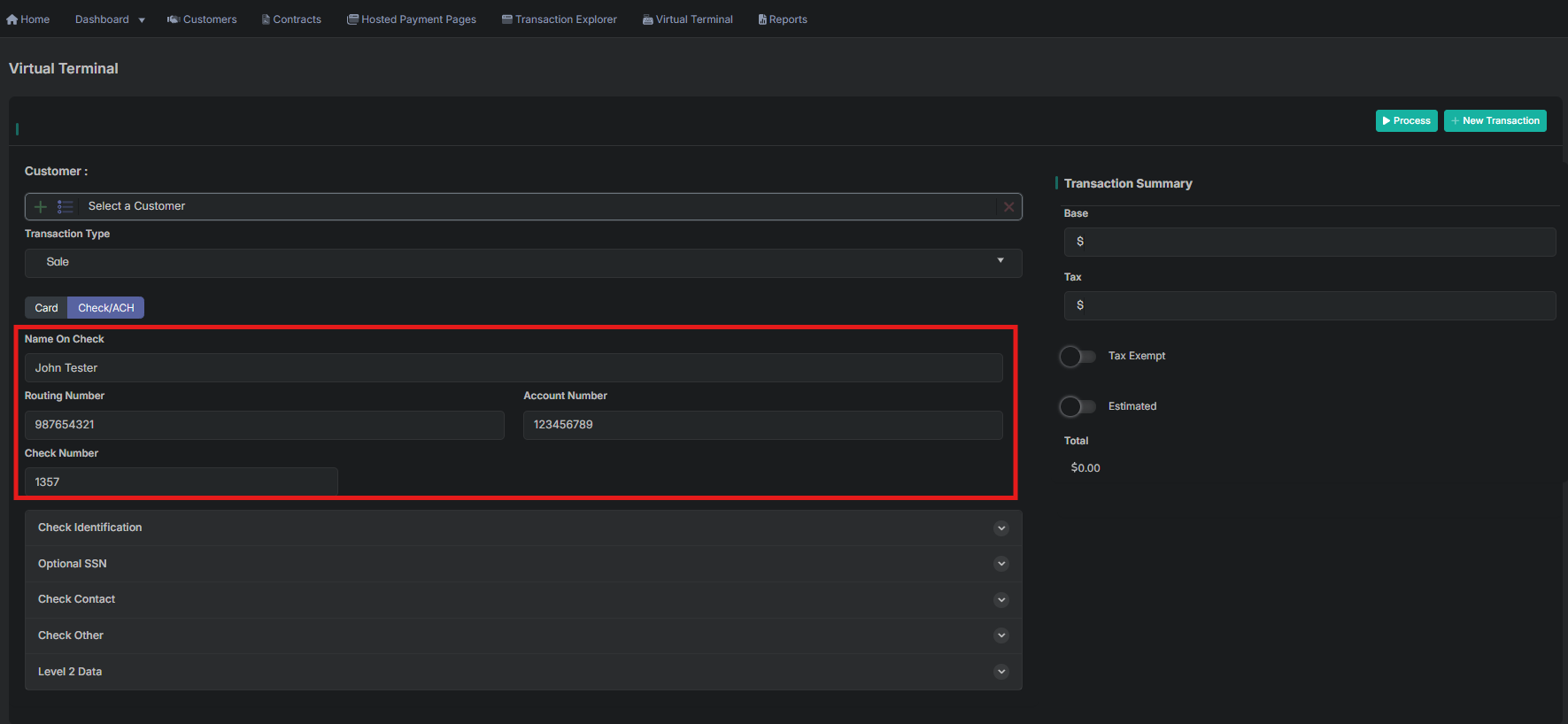
4. Enter Check Information
- Enter the Name on Check
- Enter the Routing Number
- Enter the Account Number
- Enter the Check Number
Additional optional sections—such as Check Identification, SSN, Contact Information, Address, and Other Details—are available below the main fields. Expand these panels if you need to enter extra information for the check transaction.
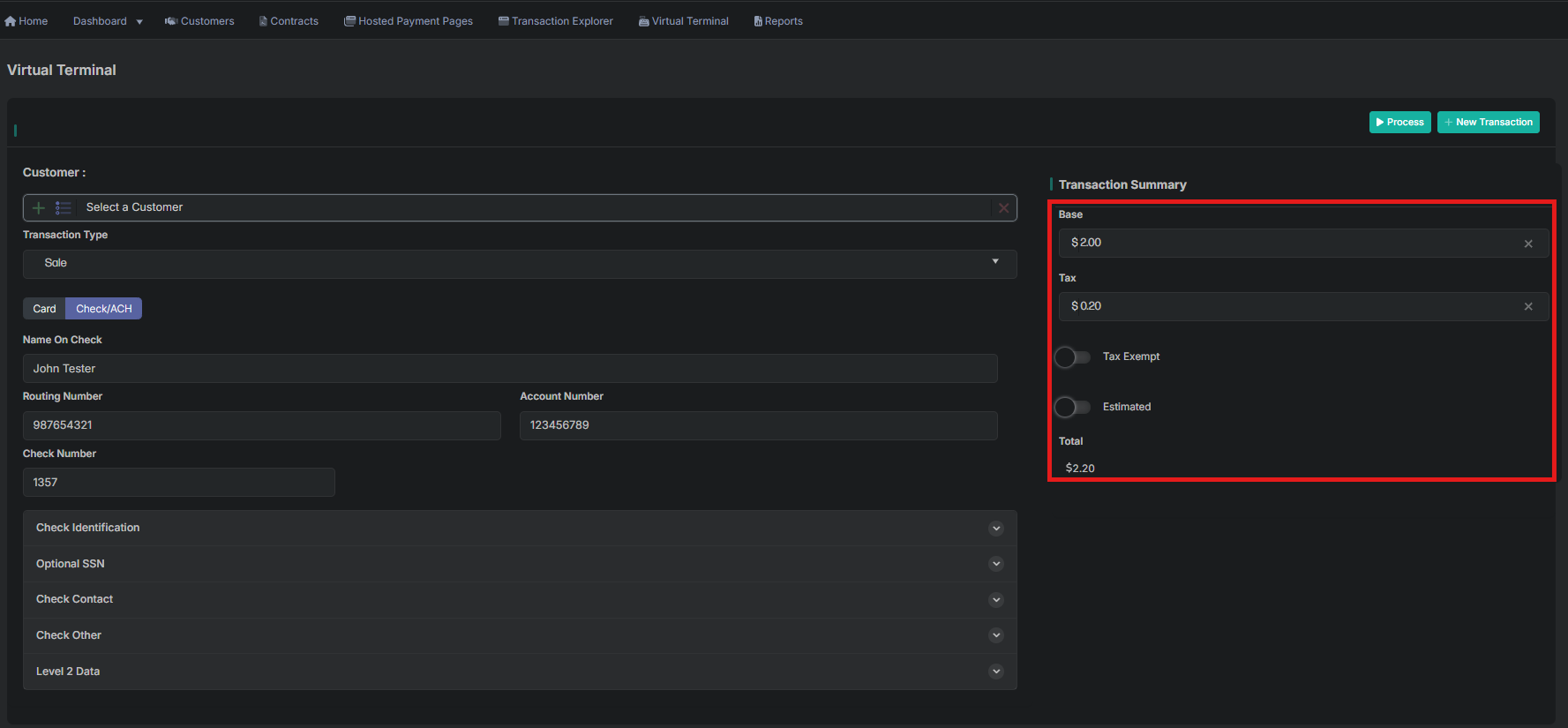
5. Enter the Amount
In the Transaction Summary panel:
- Enter the Base amount
- Enter Tax, if applicable
- Toggle Tax Exempt or Estimated if needed
The Total updates automatically as you enter amounts.
6. Click Process
Click the Process button at the top right to submit the transaction.
The system will securely authorize and process the payment in real time.
7. Viewing the Receipt
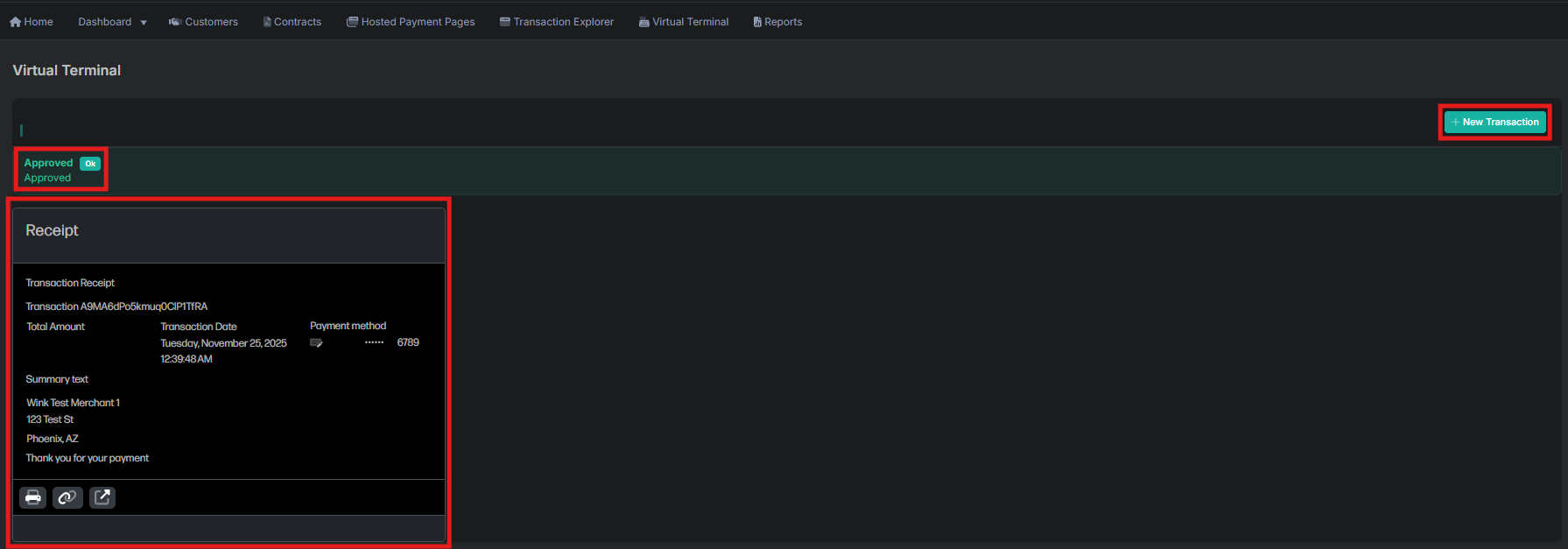
The receipt includes:
- Approval status
- Transaction ID
- Total Amount
- Date and time
- Payment method + last 4 of Account Number
- Customer or business details
Buttons to:
- Print the receipt
- Copy the receipt link
- View transaction details
Click New Transaction to return to the Virtual Terminal and run another payment.
Updated 11 months ago