
How to Run Any Report
The Reports section allows you to generate a variety of transaction, settlement, and summary reports. While each report may offer unique filter options, the process for running a report is generally the same.
Steps to Run Any Report
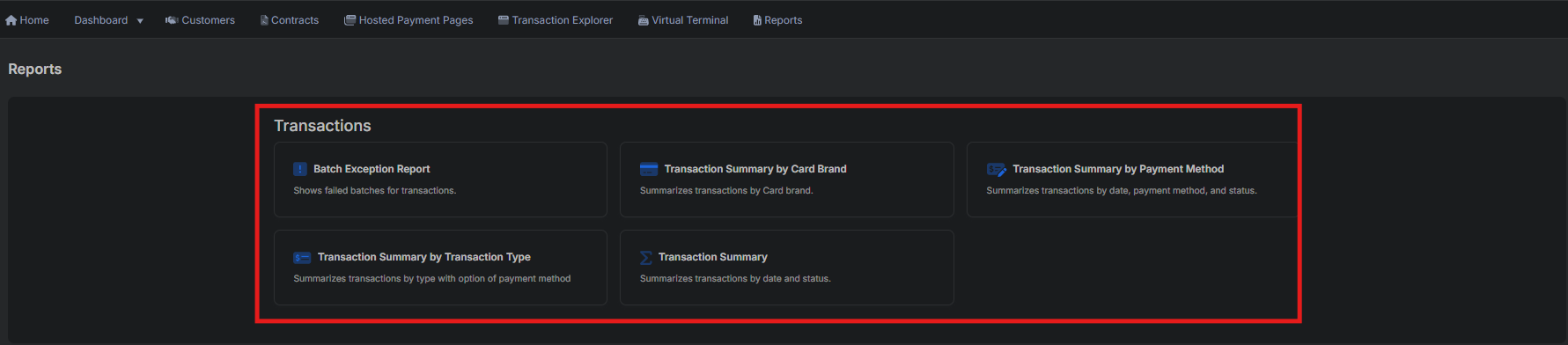
1. Open the Reports Menu
Navigate to the Reports from the main navigation menu.

2. Select a Report
Click the tile for the report you want to generate.
You will be taken to a filter/search screen tailored for that report type.
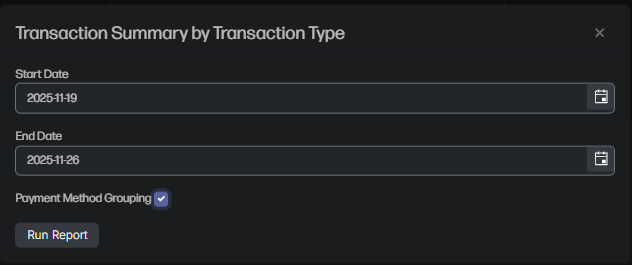
3. Enter Your Filters
All reports require a Start Date and End Date.
Depending on the report, additional filters may include:
- Transaction Result Code
- Payment Method Grouping
- Transaction Result Code
Refer to Report Columns Reference guide for additional details on filtering options.
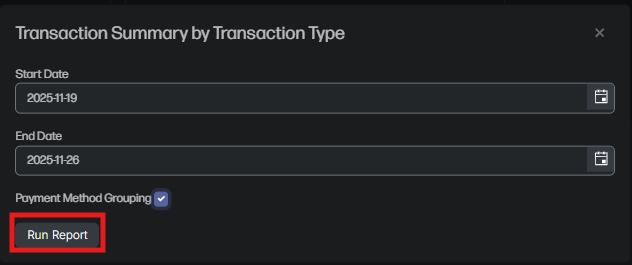
4. Run Report
Click Run Report to generate results based on the selected filters.
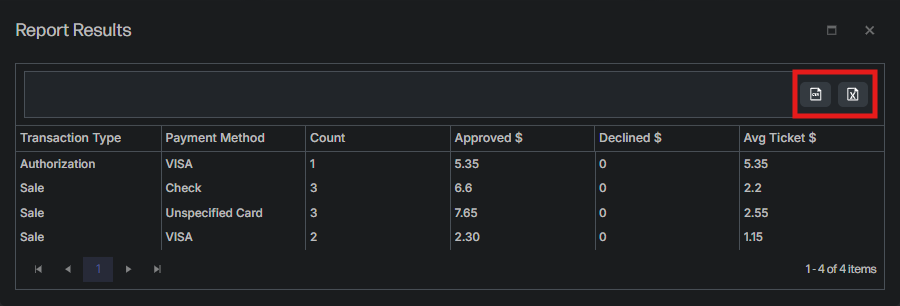
5.Review the Results Table
The report results will appear in a table that can include values such as:
- Counts
- Amounts (approved, declined, total)
- Status
- Date groupings
- Breakdown by payment method, card brand, or transaction type
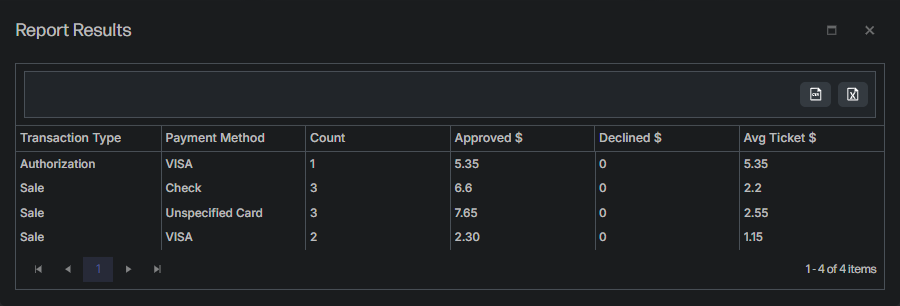
6. Export Results (Optional)**
Use the export icons in the upper right of the results table to download your data as:
- CSV
- Excel
Updated 11 months ago