
How to Create a Reseller Account
This guide will walk you through the process of creating a simple reseller account.
1. Navigate to Resellers
Go to Resellers from the main navigation menu.

2. Create a New Reseller Account
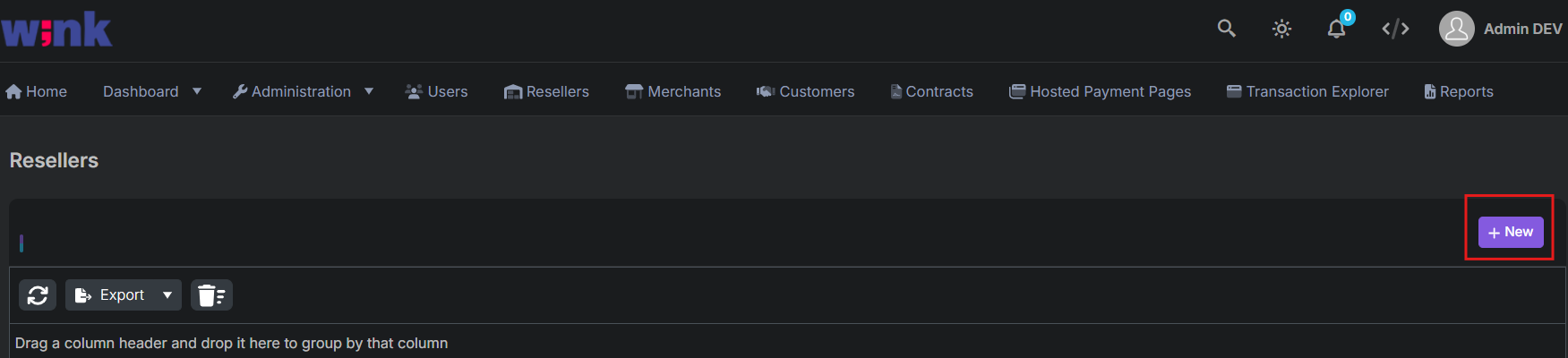
Click the + New button to begin creating a new reseller.
3. Enter the General Information
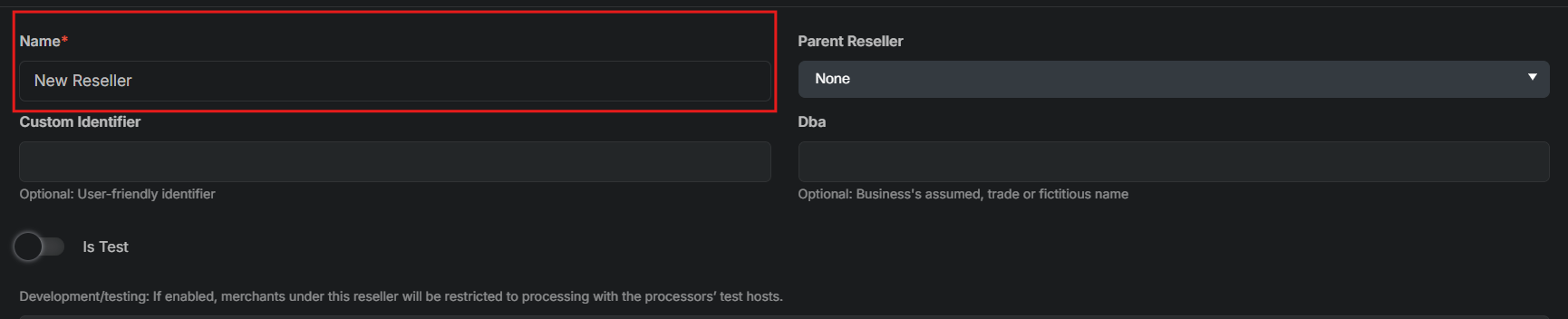
Fill in the basic details:
- Enter the Name for the reseller
- Select Parent Reseller if the reseller is a sub-reseller of the primary; if not, leave as none
4. Contact Details
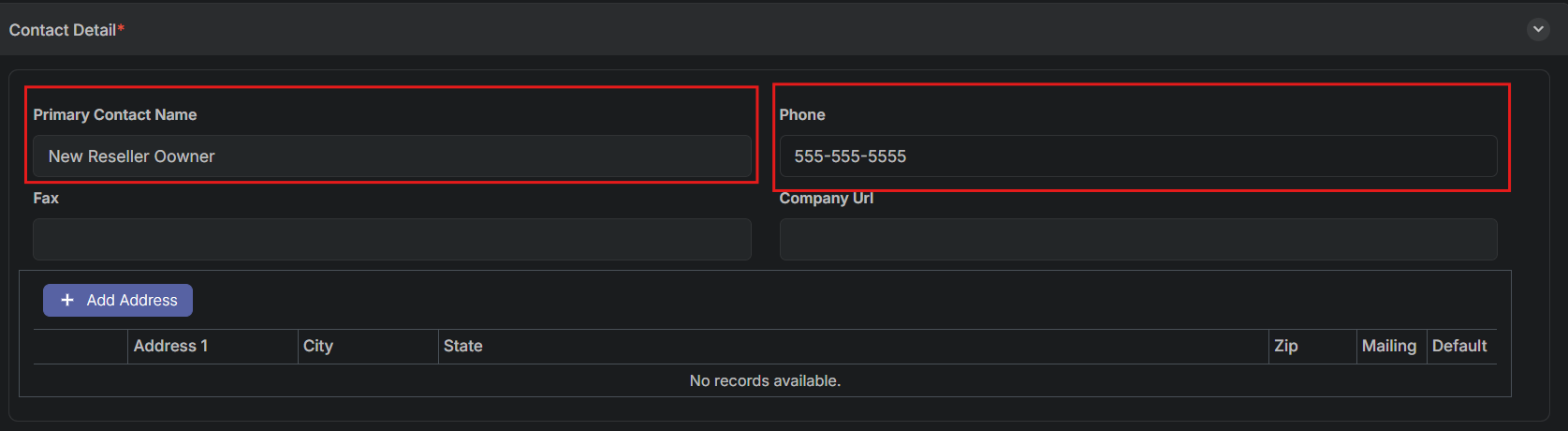
Fill in the customer's contact information and address.
- Enter Primary Contact Name
- Enter Phone number
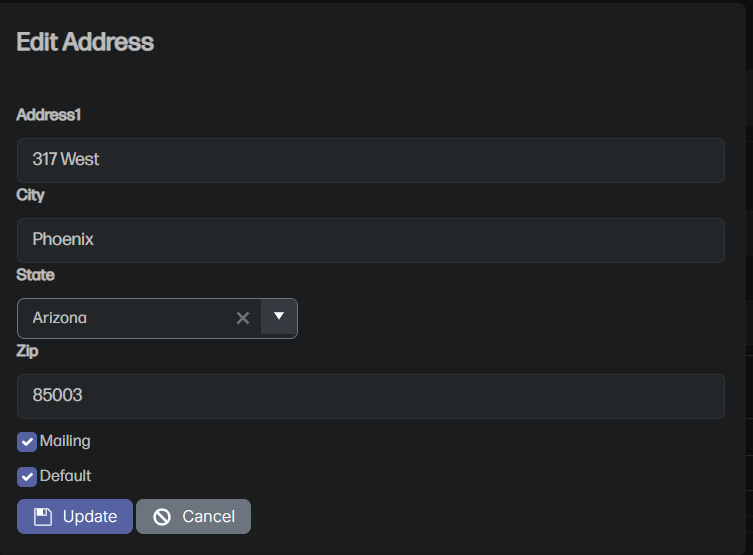
Select +Add Address
- Enter Address1
- Enter City
- Select State from the dropdown options
- Enter ZIP
- Toggle Mailing on
- Toggle Default on (Resellers are required to have at least one Default Address)
- Select Update when the form is completed
5. Features
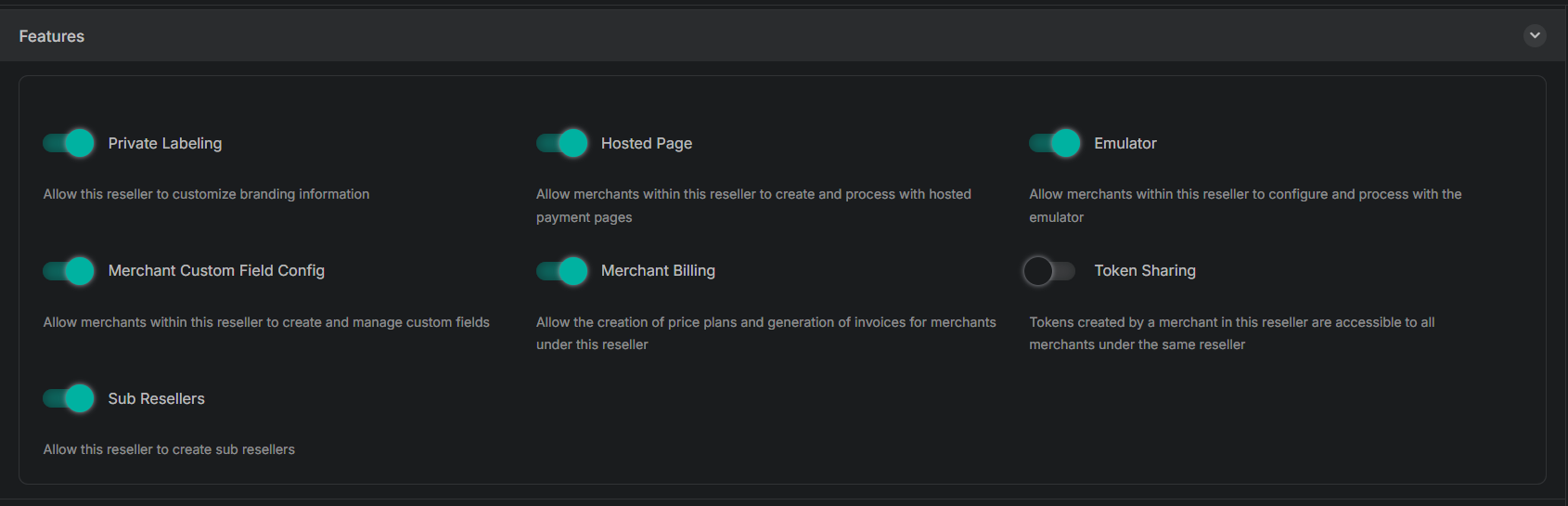
Toggle the optional features that a reseller will have access to. Most are provided by default.
| Feature | Description |
|---|---|
| Private Labeling | Allow this reseller to customize branding information |
| Hosted Page | Allow merchants within this reseller to create and process with hosted payment pages |
| Emulator | Allow merchants within this reseller to configure and process with the emulator |
| Merchant Custom Field Config | Allow merchants within this reseller to create and manage custom fields |
| Merchant Billing | Allow the creation of price plans and generation of invoices for merchants under this reseller |
| Token Sharing | Tokens created by a merchant in this reseller are accessible to all merchants under the same reseller |
| Sub Resellers | Allow this reseller to create sub-resellers |
6. Branding
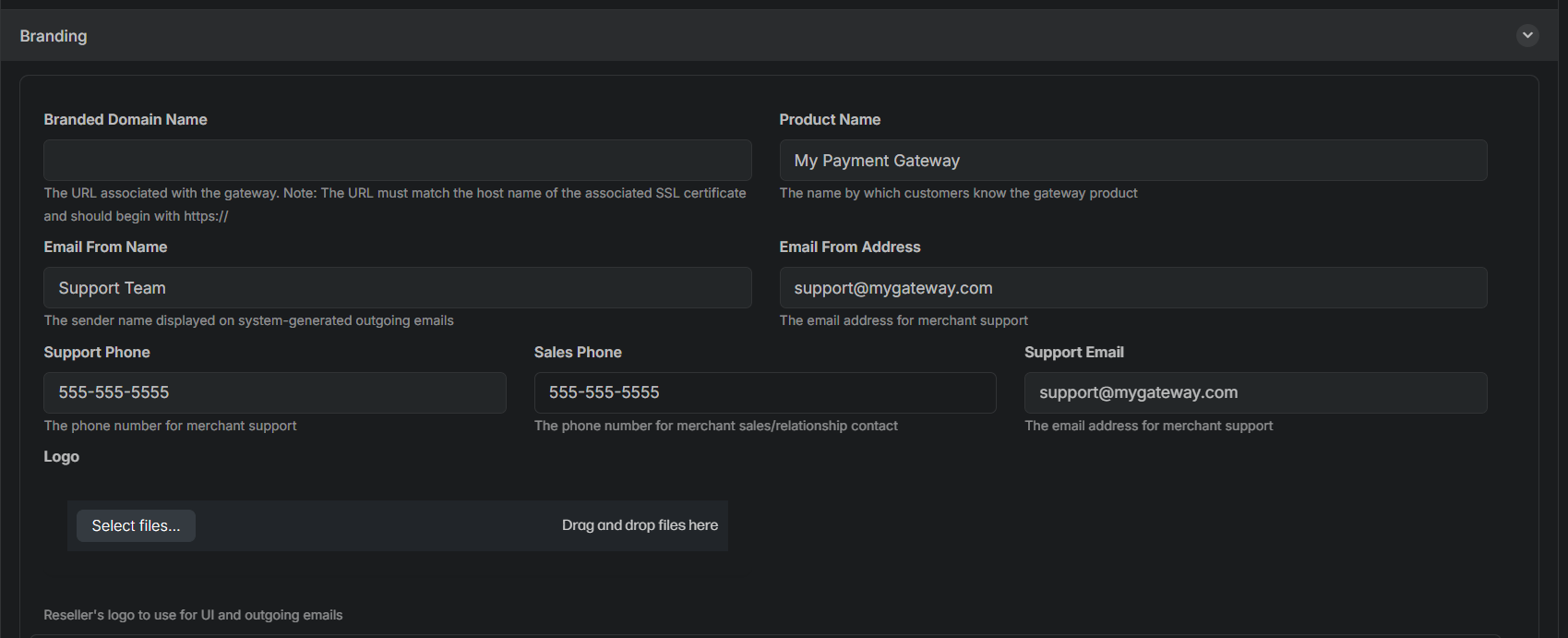
Fill in the branding information for your reseller account.
| Field Name | Description | Required |
|---|---|---|
| Branded Domain Name | The URL associated with the gateway. Note: The URL must match the host name of the associated SSL certificate and should begin with https:// | Only for white-labeled customers |
| Product Name | The name by which customers know the gateway product | No |
| Email From Name | The sender name displayed on system-generated outgoing emails | No |
| Email From Address | The email address for merchant support | No |
| Support Phone | The phone number for merchant support | No |
| Support Email | The email address for merchant support | No |
| Logo | Reseller's logo to use for UI and outgoing emails | No, will use primary logo by default |
7. Save Reseller
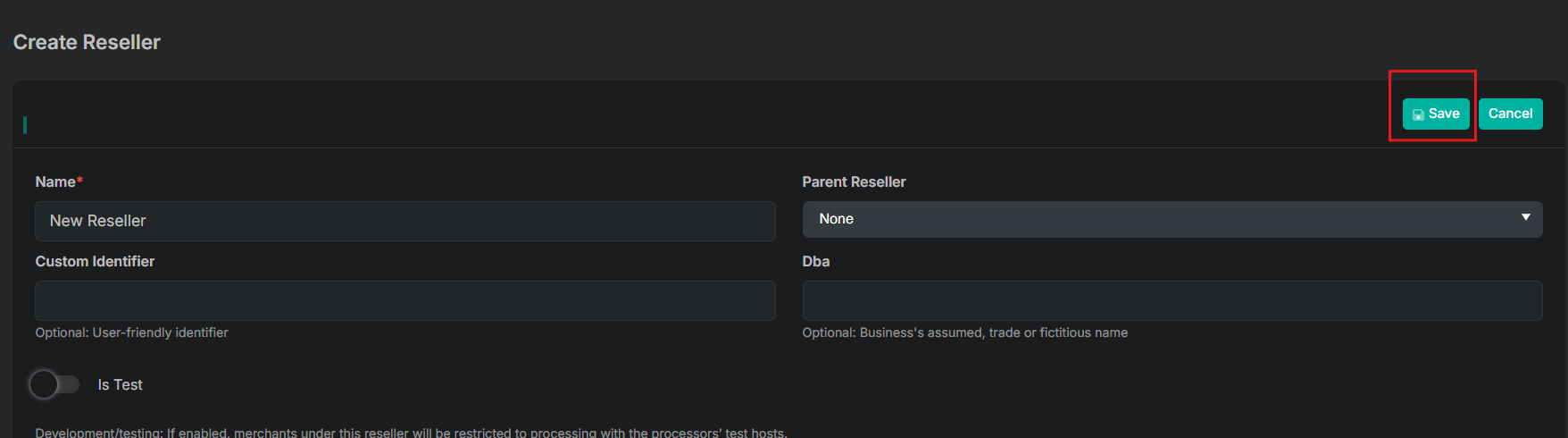
After entering the information, scroll to the top of the page and select Save.
Updated 11 months ago
Did this page help you?