
Add a customer profile and payment method
This guide will walk you through the process of adding a customer profile and payment method to the Customer Vault.
1. Navigate to the Customer Vault
Select Customers from the main navigation menu.

2. Add new Customer
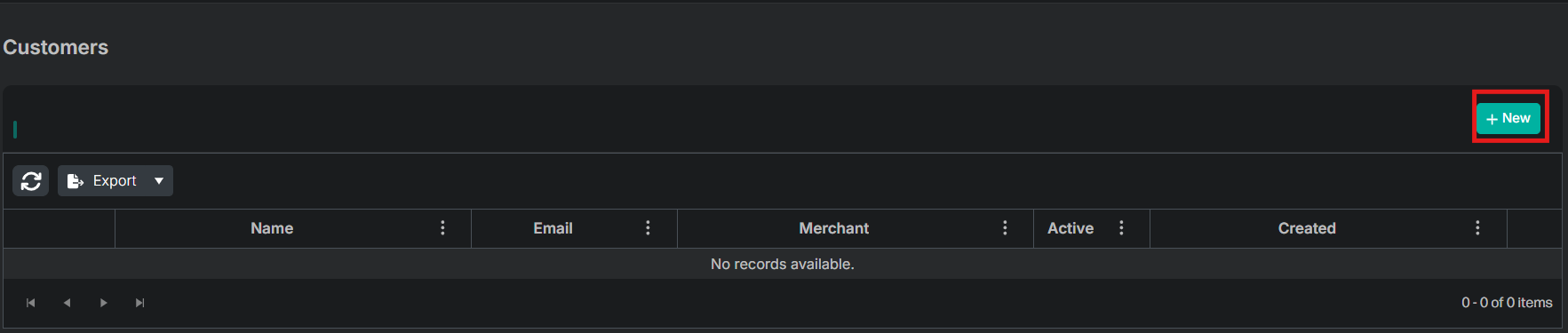
Select New from the Customer Dashboard
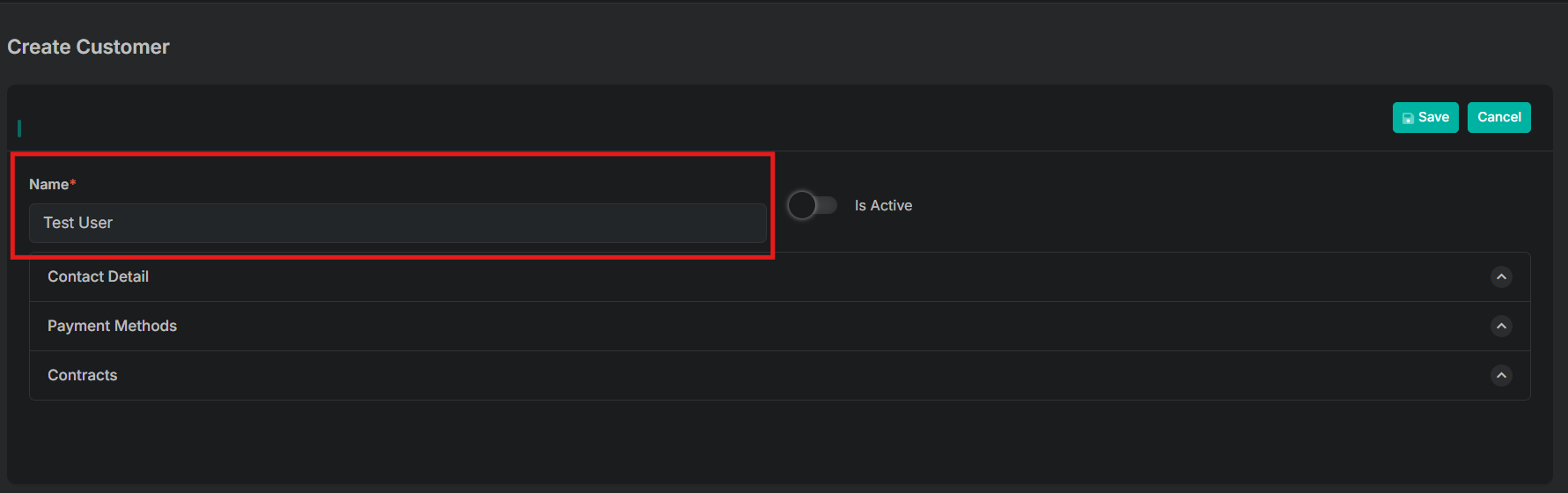
3. Enter Customer Name (Required)
Type the name of your customer. This is the name that will display on the main customer dashboard.
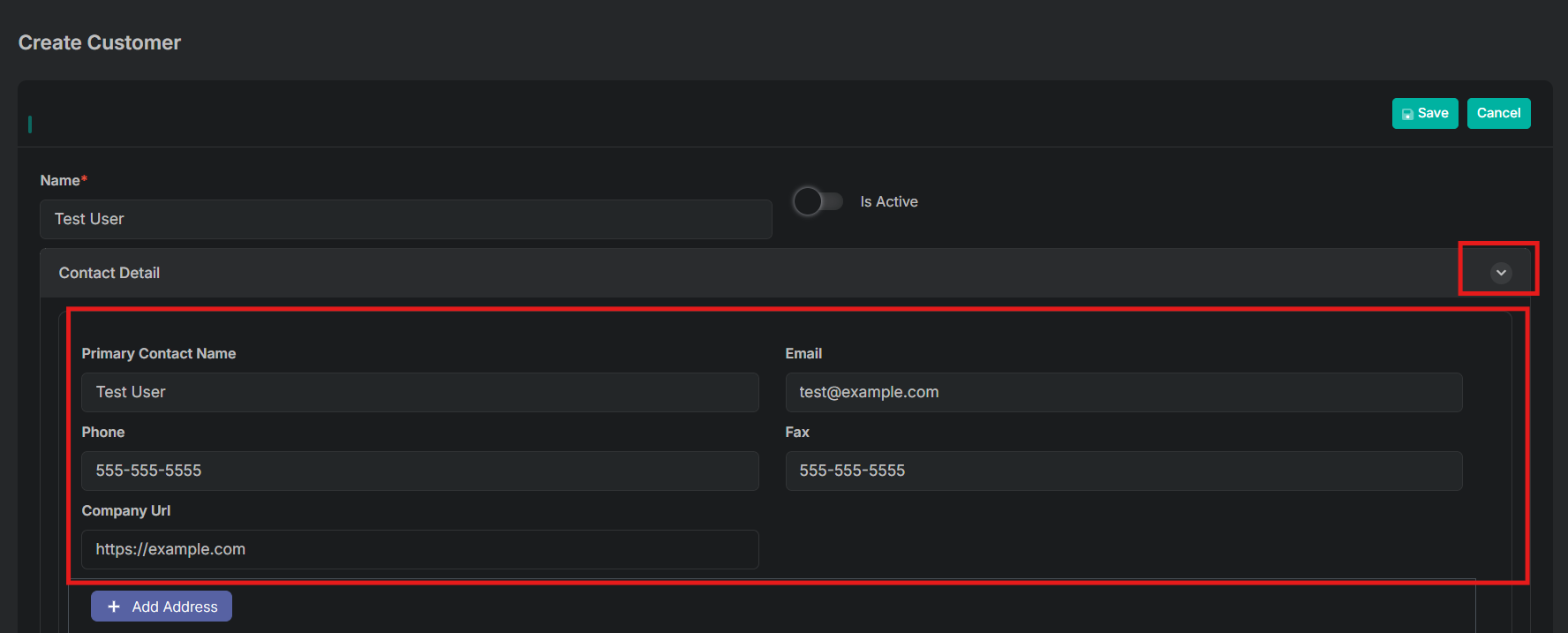
4. Enter Contact Detail (Optional)
Select the arrow to expose the Contact Detail fields.
- Enter the Primary Contact Name
- Enter the Email
- Enter the Phone Number
- Enter the Fax Number
- Enter the Company URL
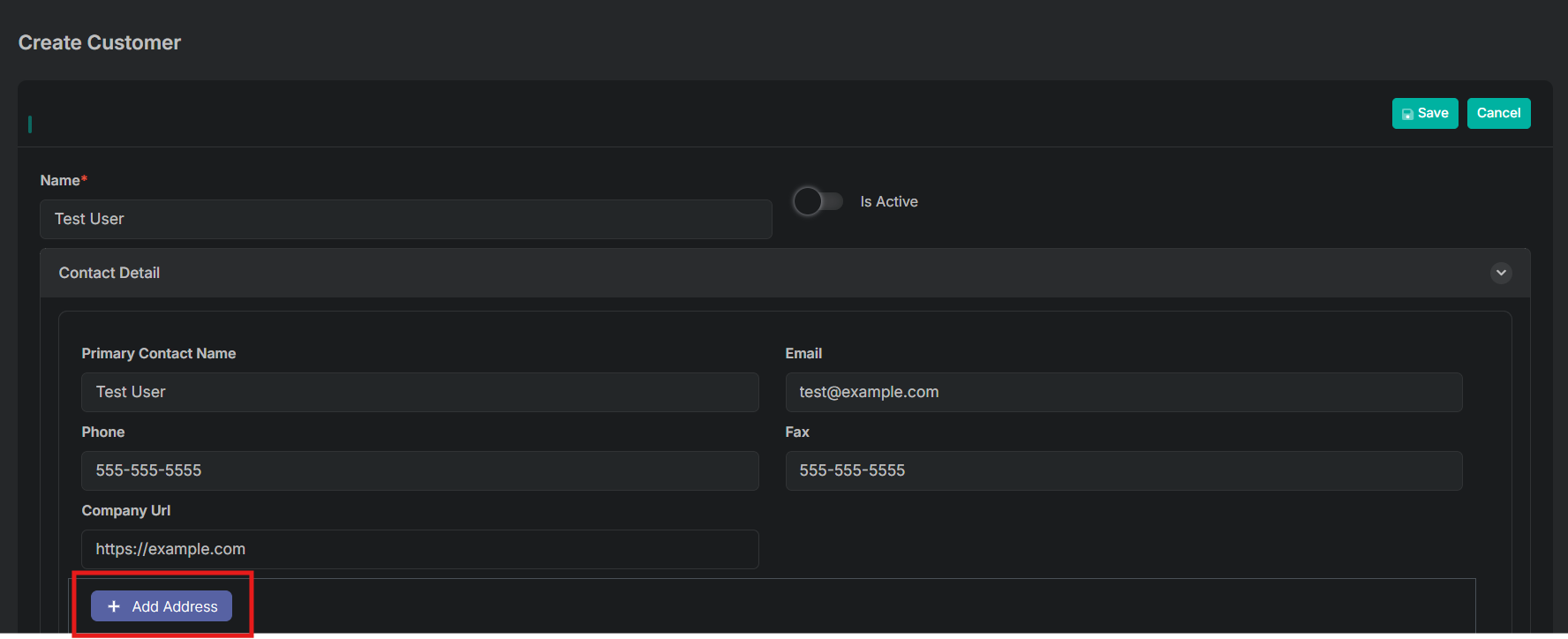
5. Add Address for your Customer (Optional)
Select Add Address from the Create Customer Page
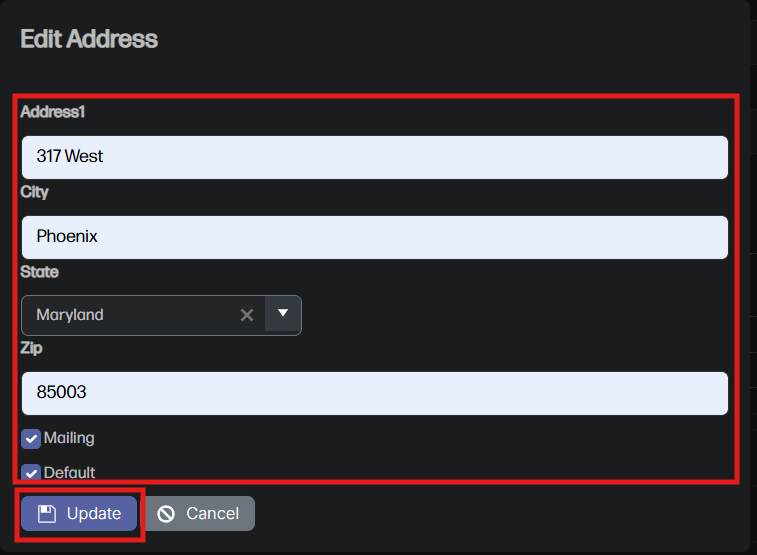
6. Enter Address information
- Enter Address1
- Enter City
- Select State from the dropdown option
- Enter ZIP
- Add checkmark to Mailing to make entry the mailing address
- Add checkmark to Default to set as default address
- Select Update to save entered information
7. Add a Payment Method to Customer Profile (Optional)
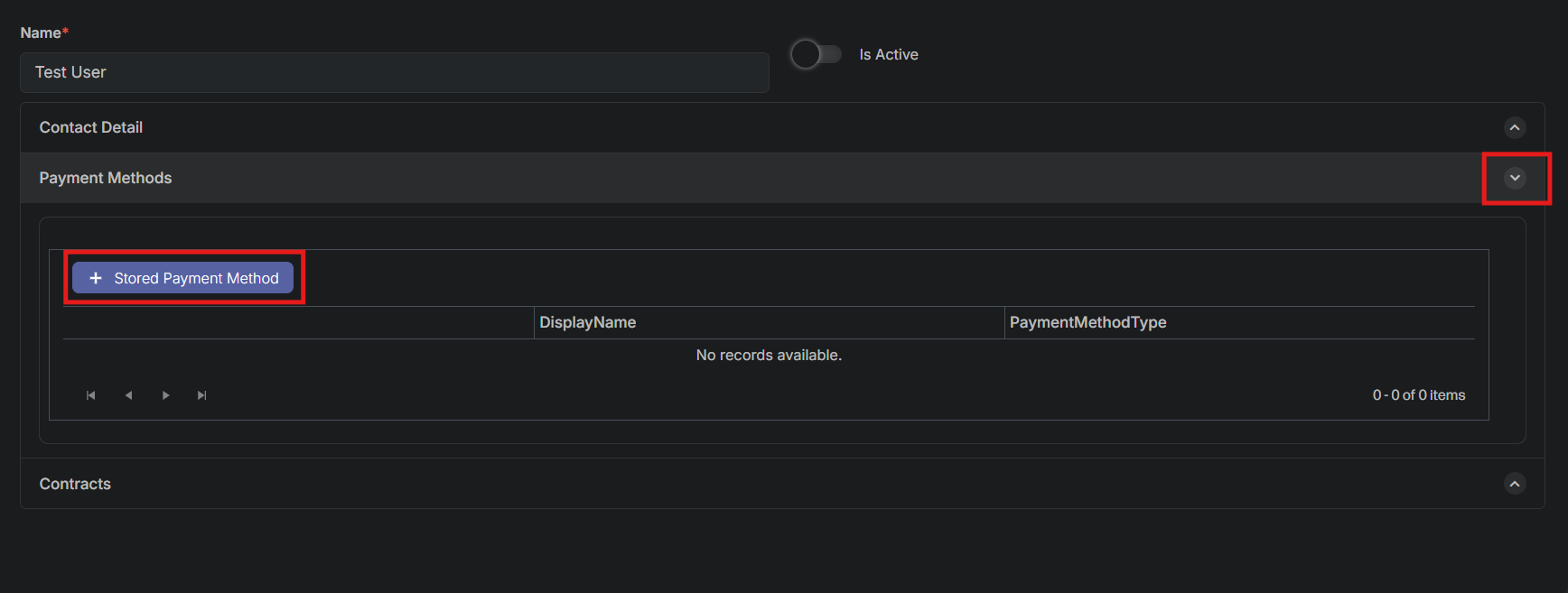
Select the arrow to expose the option to add a Stored Payment method, then select Stored Payment Method Button
8. Enter Payment Information
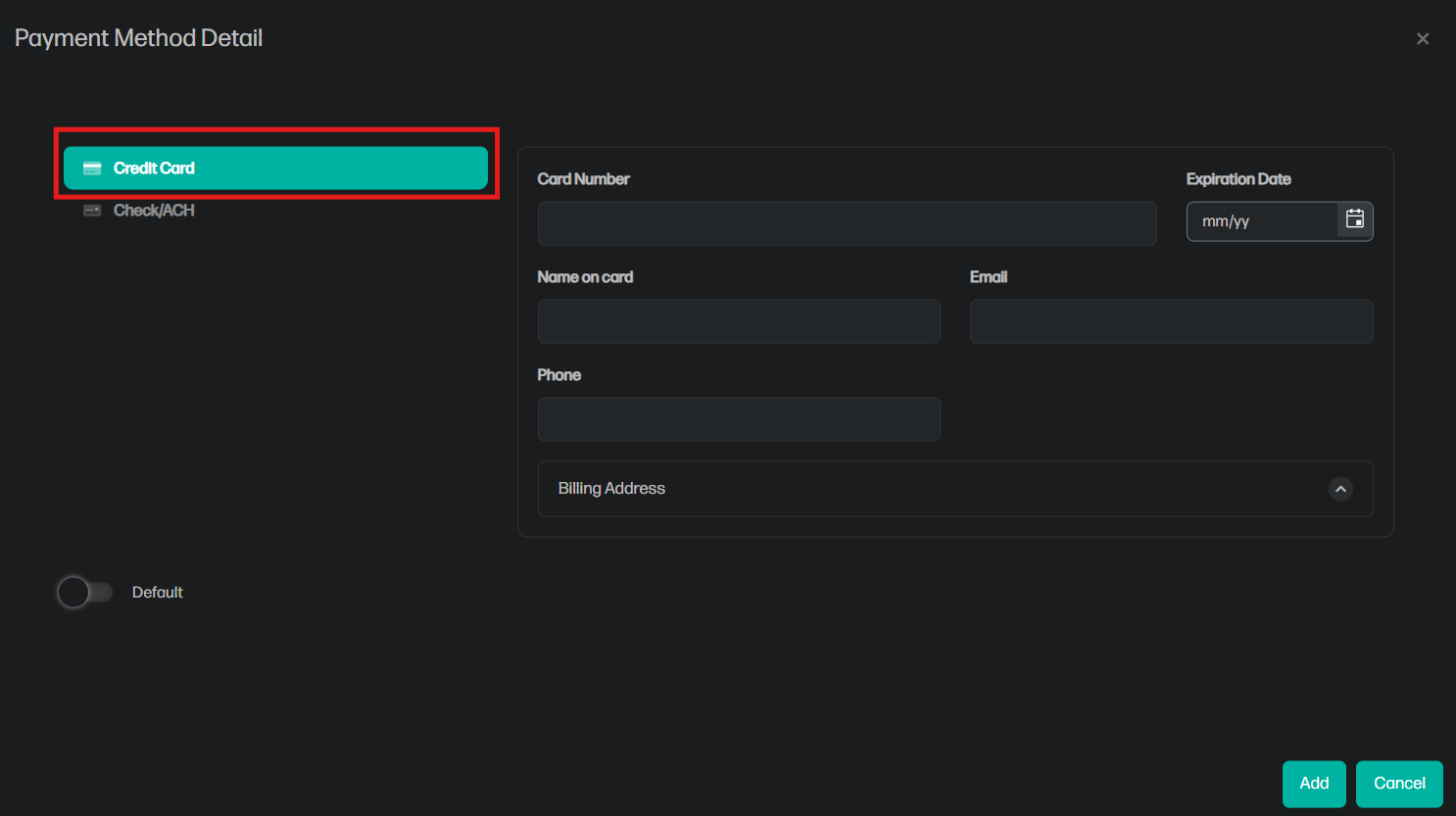
There are two options for payment information, Card or Check/ACH. In this example we will enter card information.
9. Select Credit Card as Payment Method
Ensure the Credit Card option is selected.
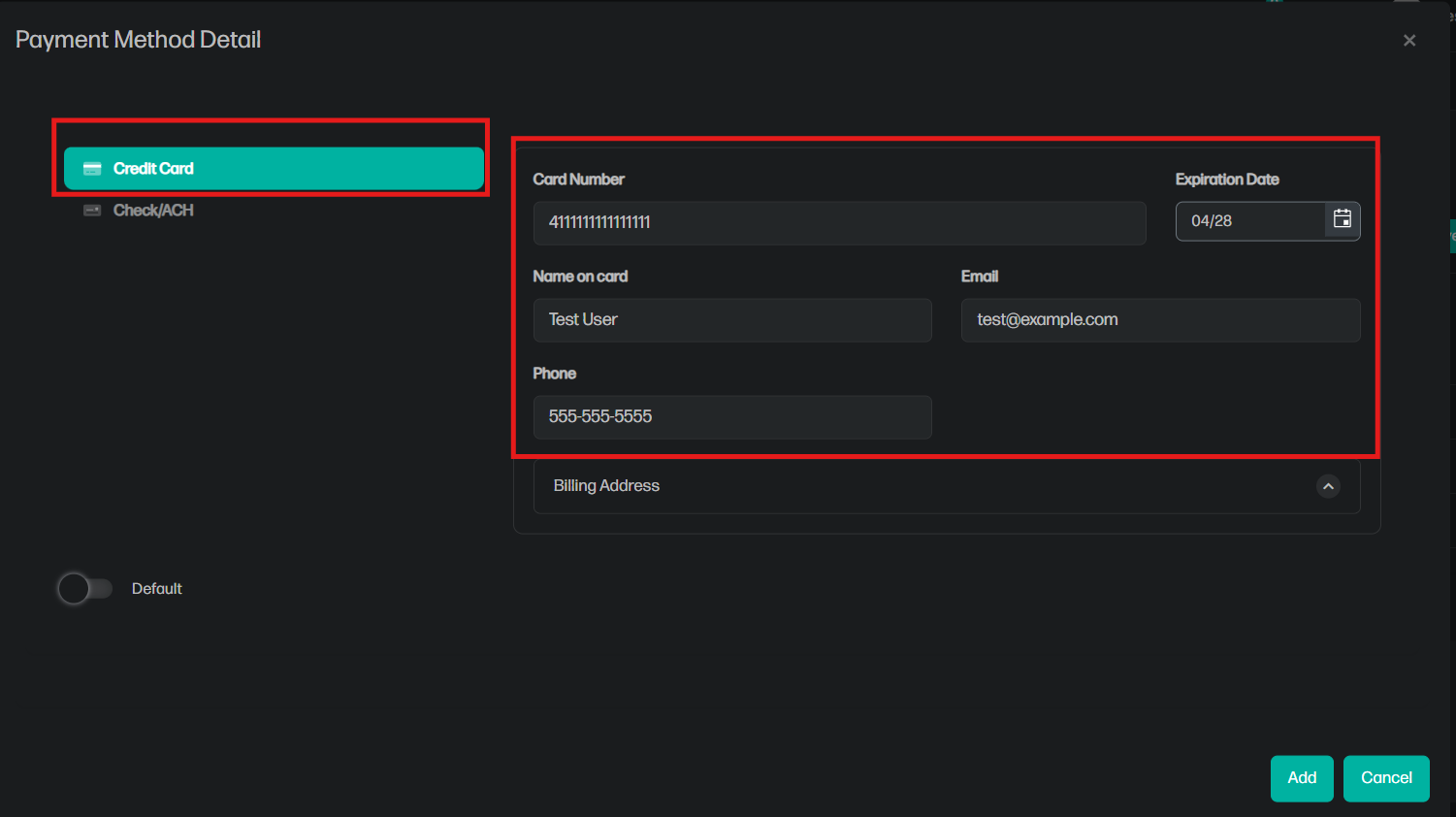
10. Enter Credit Card Information
- Enter the Card Number
- Enter the Expiration Date (MM/YY)
- Enter the Name on Card
- Enter the Email Address
- Enter the Phone Number
11. Add Billing Address
Select the arrow next to Billing Address.
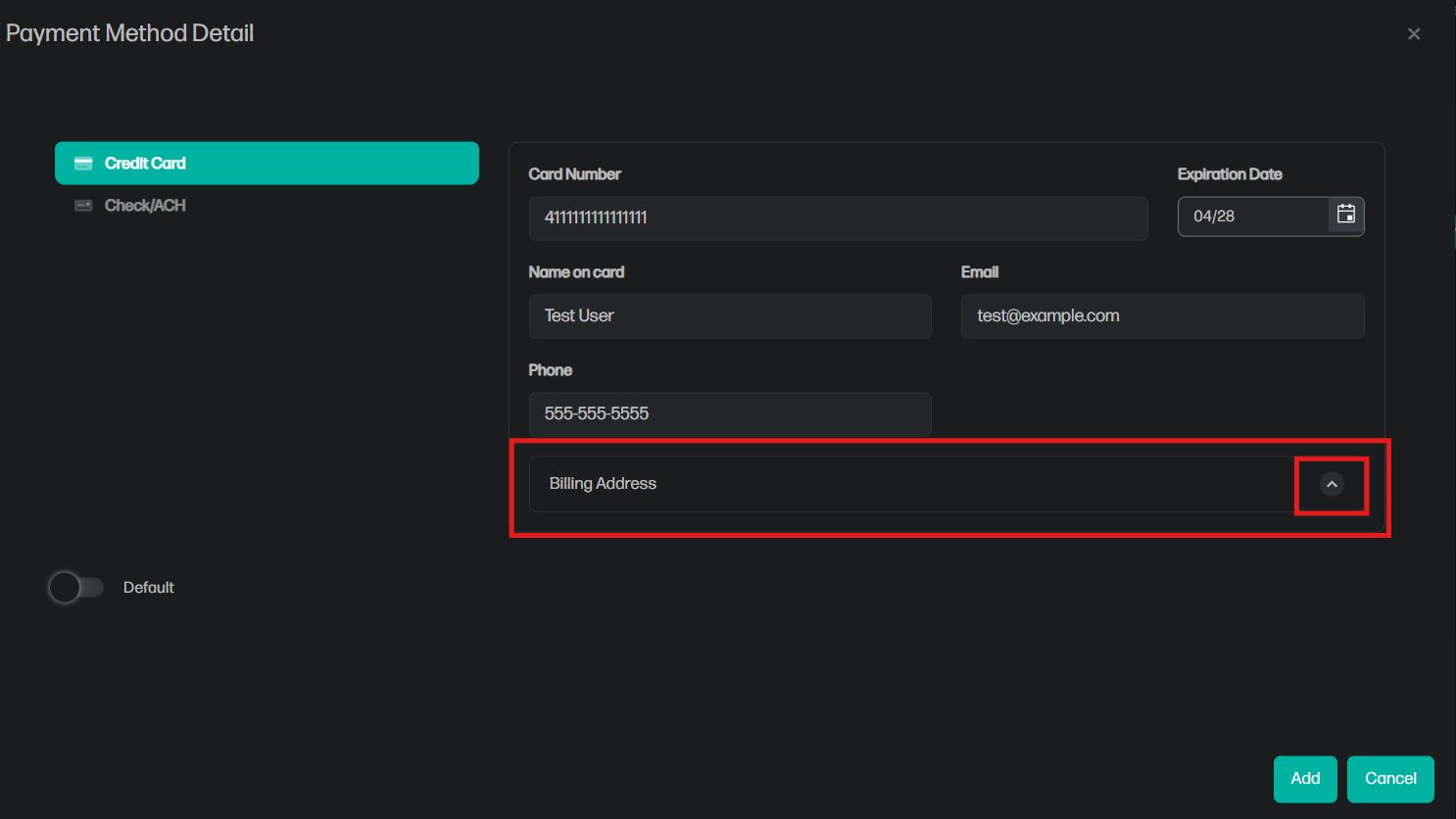
12. Enter Billing Address
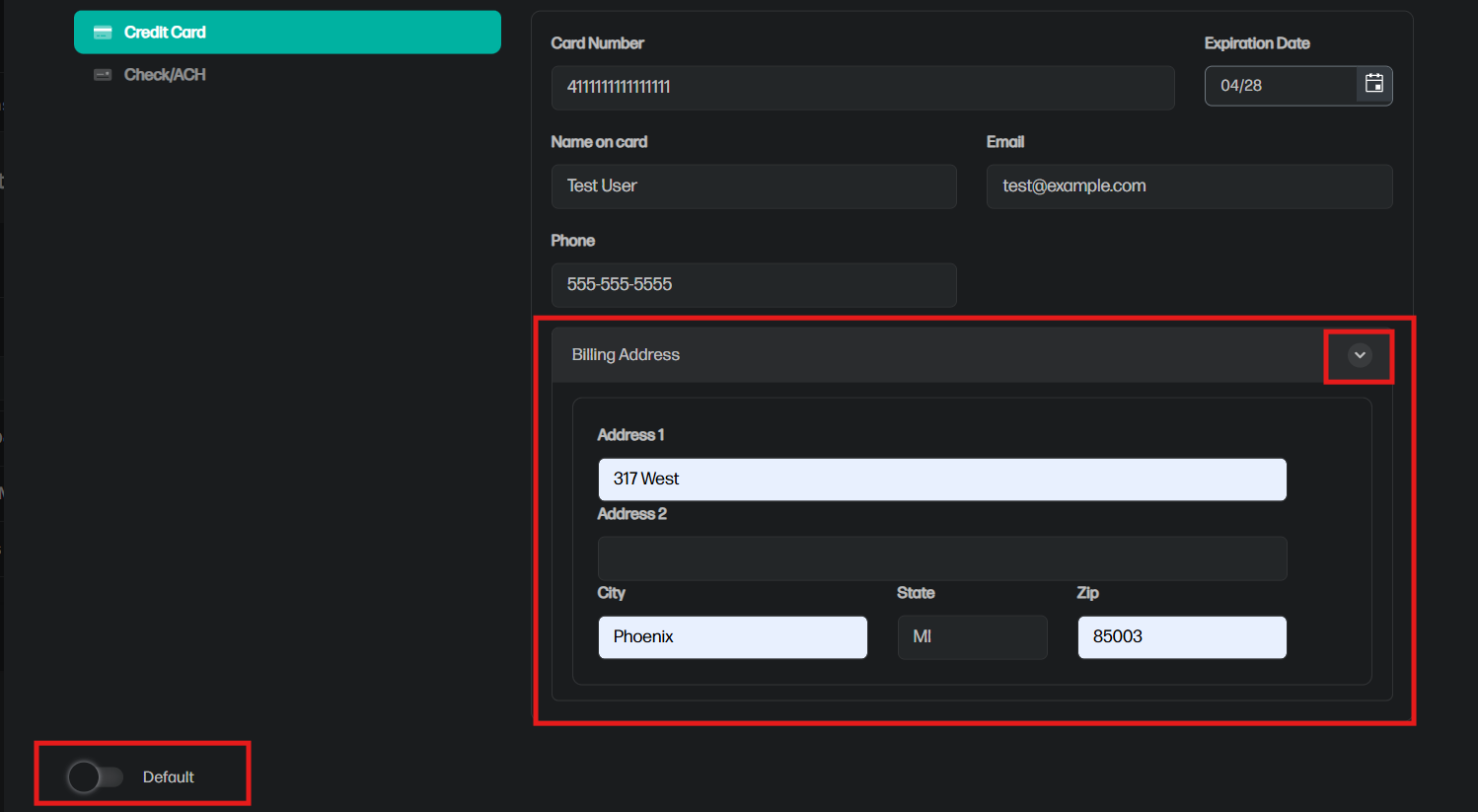
- Enter Address 1
- Enter Address 2 for Apartment Number
- Enter City
- Enter State abbreviation
- Enter Zip
- Toggle Default to set the payment method as default
- Select the arrow next to Billing Address again after entering information
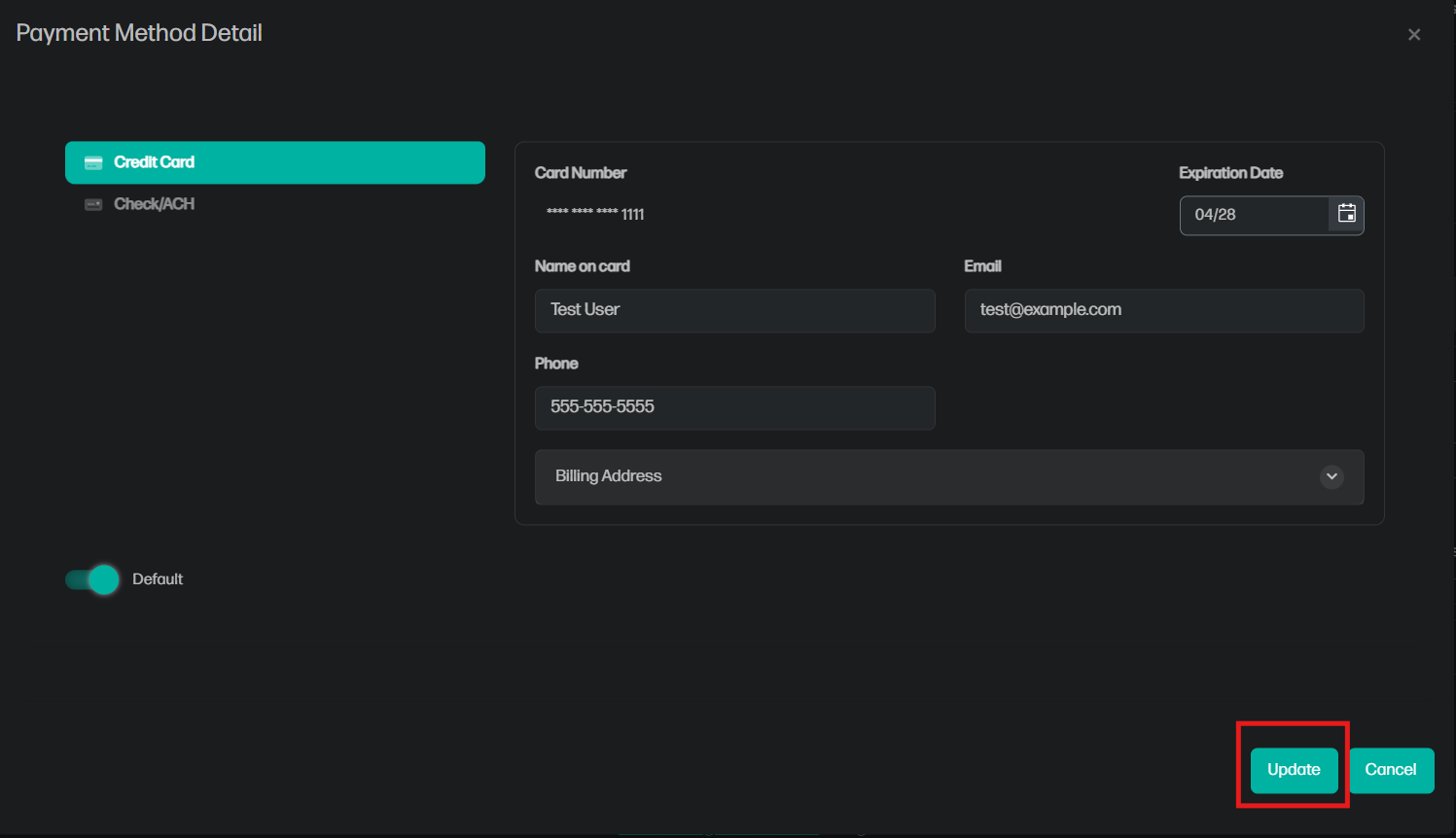
13. Saving Payment Information
After selecting the arrow next Billing Address select the Update button.
14. Saving Customer Profile
- Toggle Is Active
- Click the Save Button
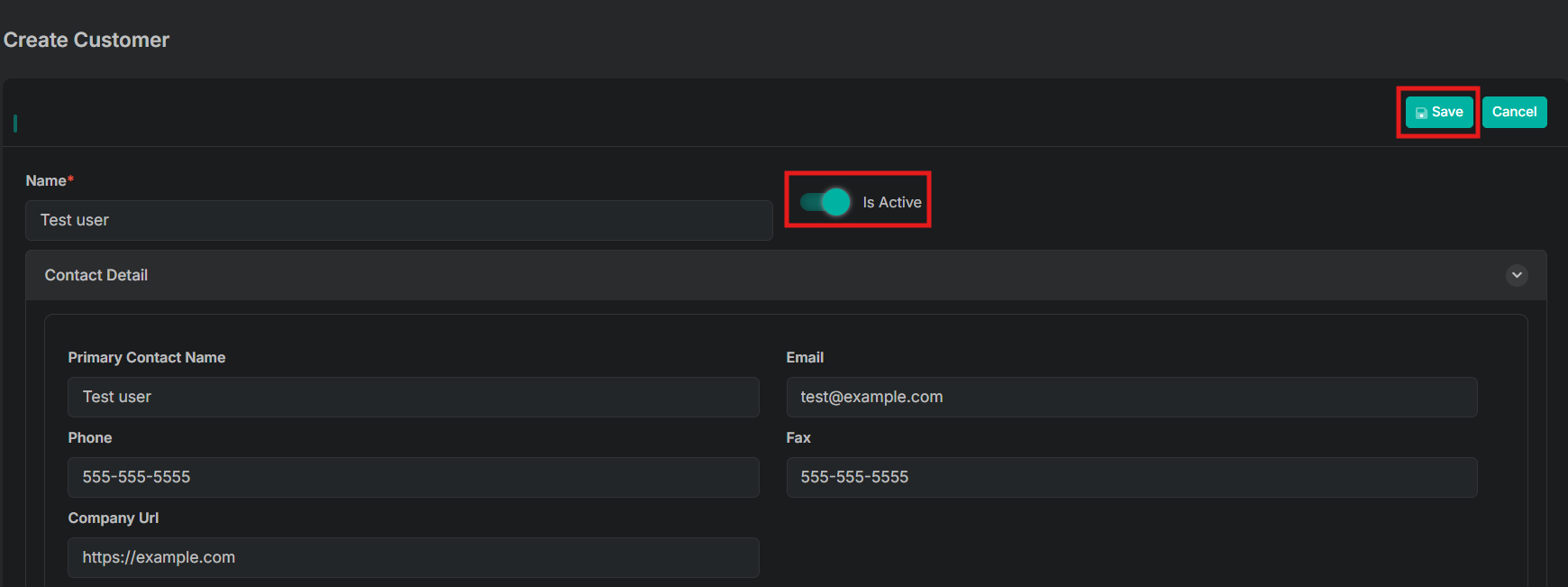
After saving the Customer Profile it will be visible from the main Customer Dashboard.
Updated 11 months ago