
Enrollment
If no biometric match is found, the SDK assumes the user is new to the system and initiates the enrollment process.
The only step required after facial capture is completing the User Profile form. This information is used to create a new WinkID linked to the user’s biometric data.
During Profile Capture:
- Email address and phone number are validated for proper formatting and checked to ensure they are not already associated with another user. Invalid or duplicate entries prevent the Save button from appearing.
- First and Last Name must contain acceptable values.
- The user must check the confirmation box authorizing Wink Identity to store the provided information.
Submit Profile Form
If any field is missing or invalid, the Save button remains hidden to prevent incomplete submissions.
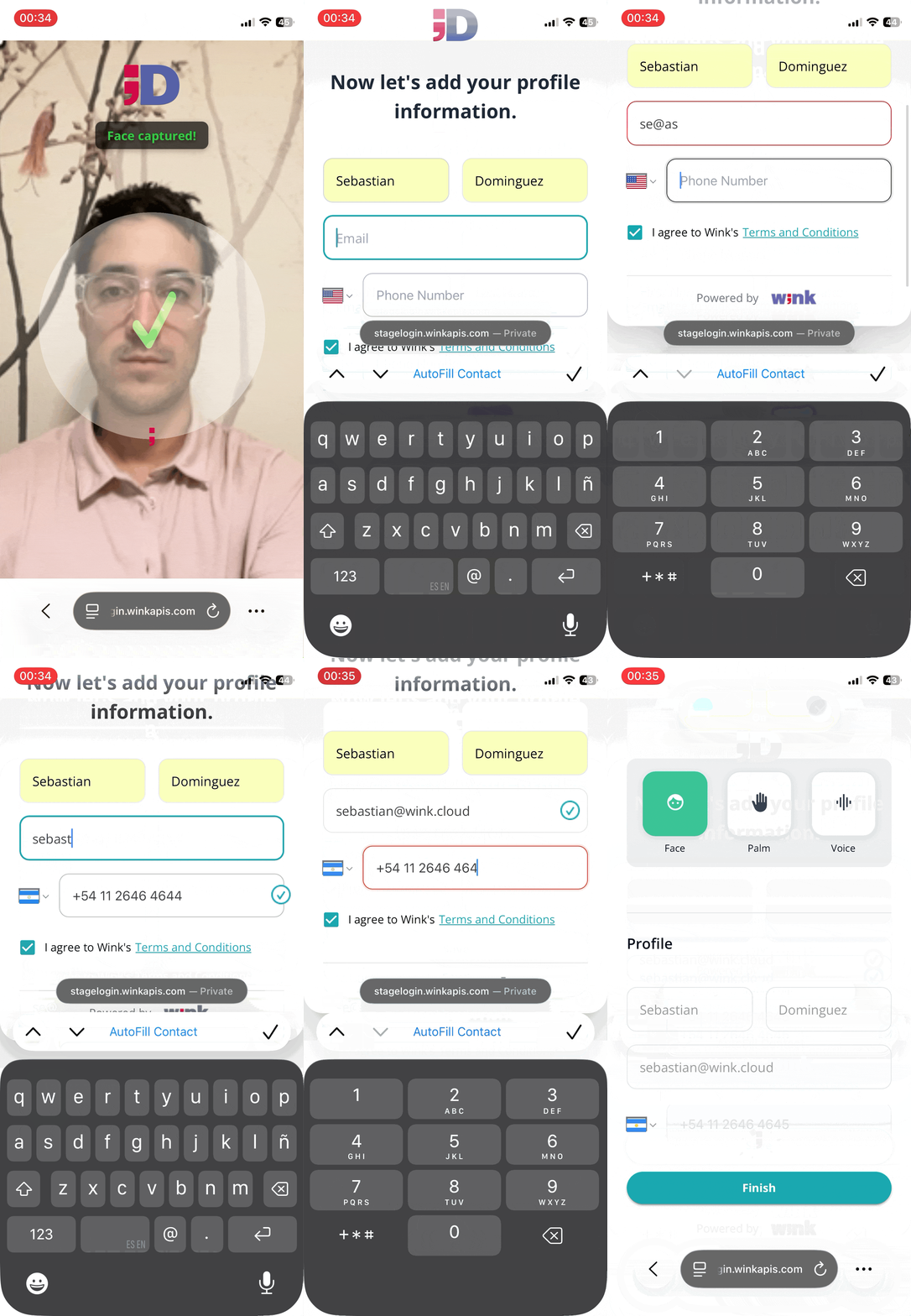
Once the profile is successfully submitted:
- A new WinkID is created and linked to the captured biometrics.
- The enrollment process is complete.
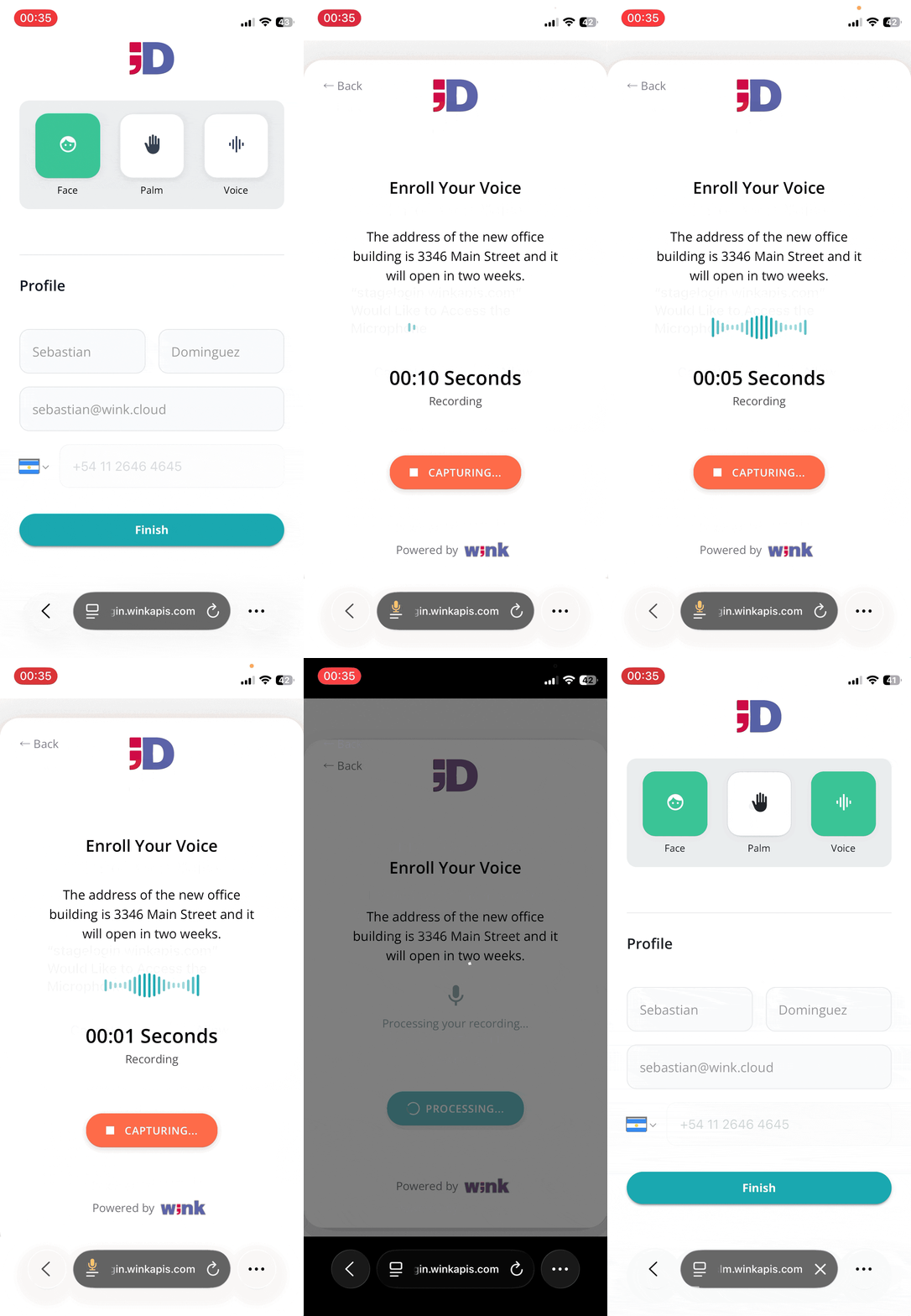
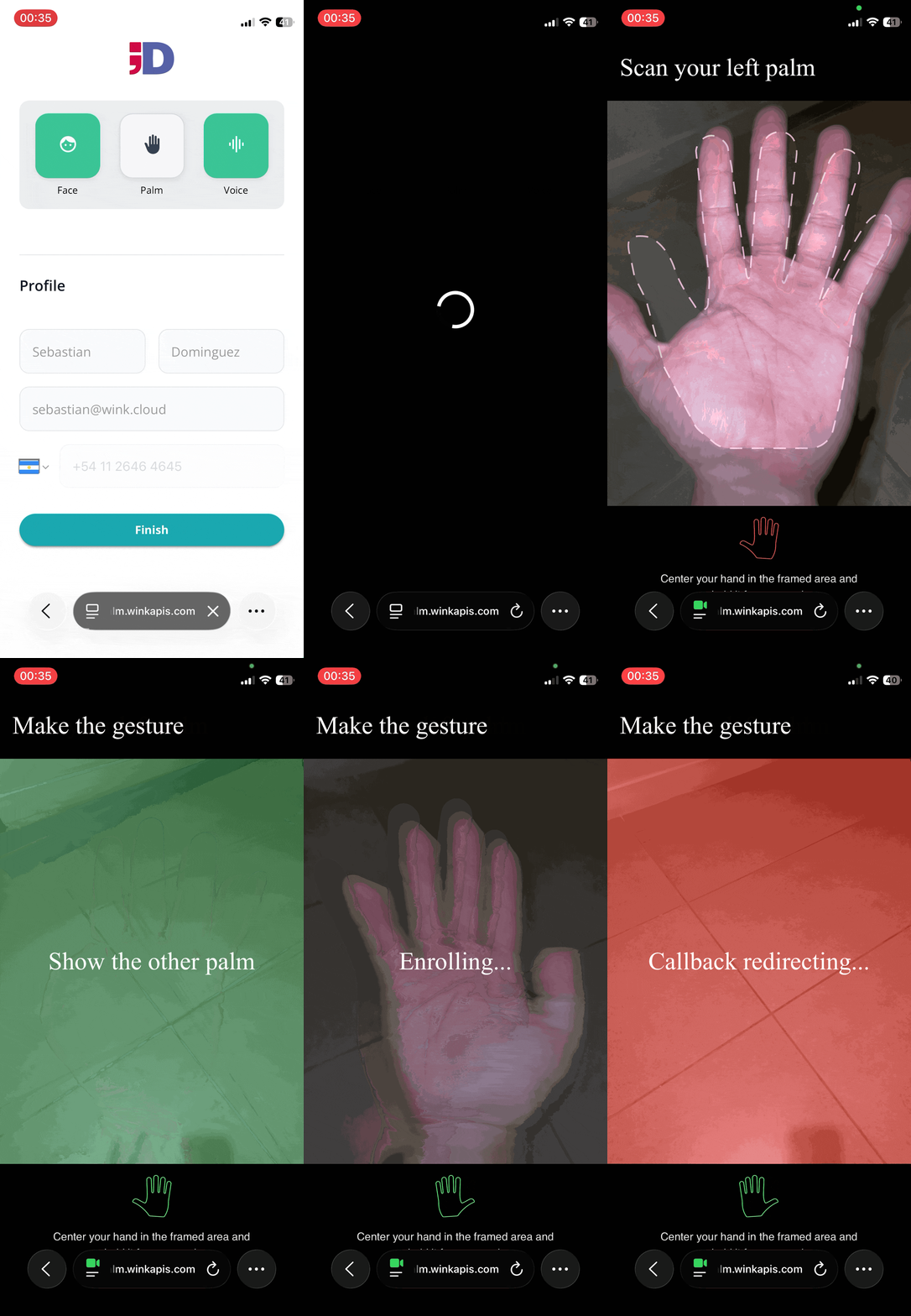
The user may now link additional authentication methods to the same WinkID for enhanced multi-factor authentication and future login flexibility:
-
Voice
-
Palm
-
External accounts (e.g. Okta)
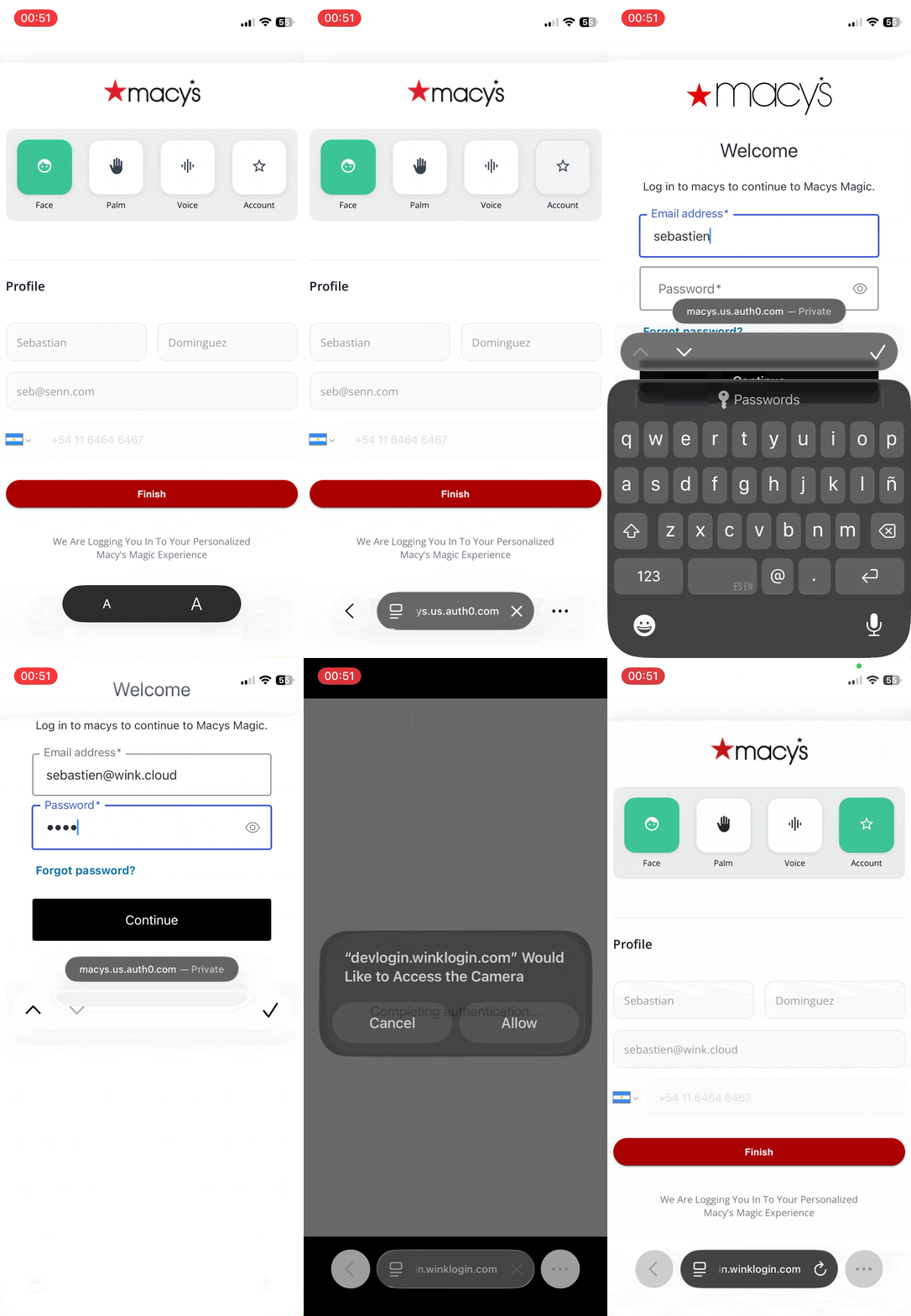
After enrollment, authentication is completed immediately and the user is redirected back to the host app.
Updated 5 months ago
Learn how returning users authenticate through the Recognition flow using their existing WinkID.